Ho-Ho-Holiday Savings — 25% OFF Online, 40% OFF Desktop (new customers only) →
+1 877-942-6343
Book a DemoFree Trial
  • Products
    HandiFox Online
    A cloud-based inventory management tool that comprises a web interface and a mobile app (Android and iOS). The software stays in sync with QuickBooks Online around the clock but also can work as a standalone solution.
    HandiFox Desktop
    A powerful inventory-oriented extension of QuickBooks Desktop. Despite being installed on-premise, it maintains two-way communication with the mobile app (Android) in the field.
  • Features
    Features
    Inventory Management
    Sales & Invoicing
    Barcoding
    Picking & Packing
    Multi-Location Tracking
    Serial & Lot Numbers, Expiration Date
    Purchasing
    Mobile App
    Customers & Vendors
    Units of Measure
    Integrations
    Quickbooks Integration
    Shopify Integration
  • Pricing
  • Support
  • Blog
Products
Features
Pricing
Support
Blog
Book a DemoFree Trial
+1-877-942-6343
Back
Features
Inventory ManagementBarcodingMulti-Location TrackingPurchasingCustomers & VendorsSales & InvoicingPicking & PackingSerials and Lot Numbers, Expiration DateMobile AppUnits of Measure
Integrations
Quickbooks IntegrationShopify Integration
Back
Products
HandiFox OnlineHandiFox Desktop
Back
Company
About HandiFoxBlogTestimonialsContact SalesPartner Program
Back
Support
Help CenterRelease Notes
Home
Getting Started Guide

HandiFox Online Getting Started Guide

Whether you’re new to HandiFox or setting up a new account, this guide will help you master the basics. Learn how to configure your settings, add inventory, and make the most of HandiFox from day one.
Start free trialRequest demo
Getting to know the HandiFox Online UIConnecting to Quickbooks OnlineSetting up HandiFox OnlineAdding itemsAdding barcodesCreating transactionsGetting to know the HandiFox mobile app
Need a hand onboarding or customizing the app?
Talk to support
Step 1
Getting to know the HandiFox Online UI

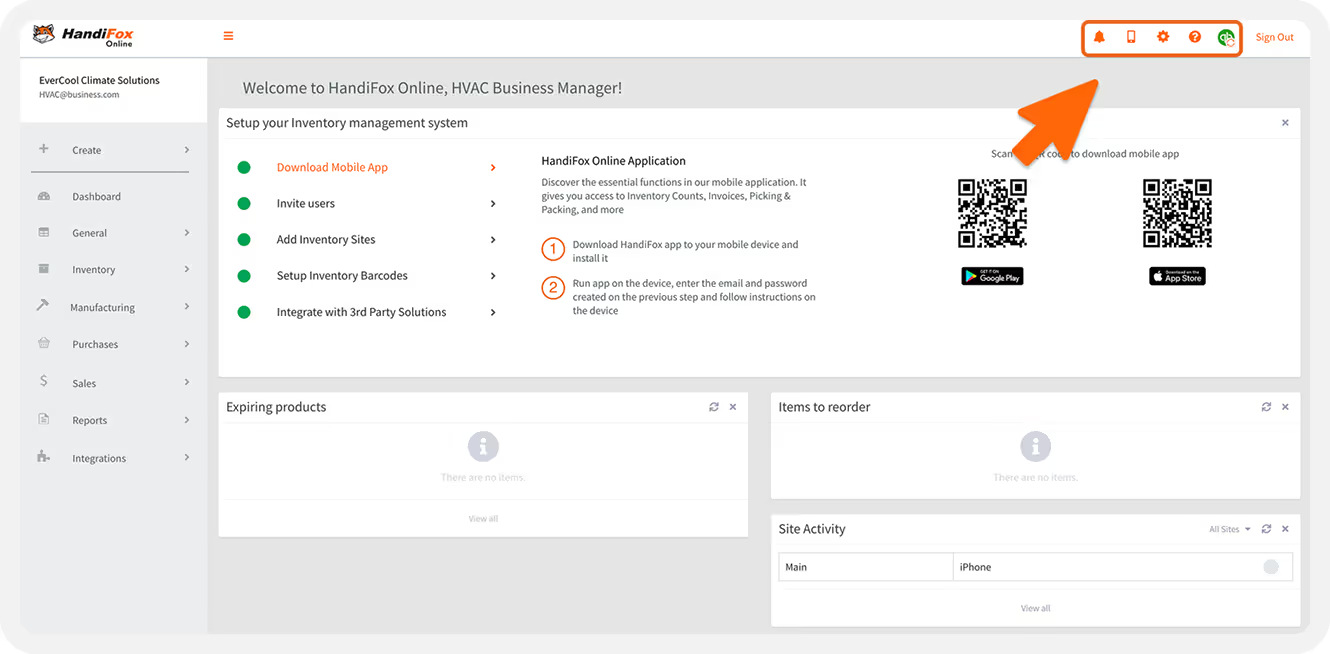
Top-right corner: key settings and user management

At the top-right corner of the screen, you’ll find several handy icons that give you quick access to key tools and settings:
Bell icon — synchronization history
Review your sync history to determine when the system last synchronized with QuickBooks Online and check for any issues that may require sharing with HandiFox support.
Mobile icon — download the app
Access a QR code to download the HandiFox mobile apps for Android and iOS.
Gear icon — subscription info, system & user settings
Check your subscription status and past invoices, and manage your users. You can add, remove, or edit users and their permissions.
Question mark Icon — help and support
Quickly reach our Contact Us form or explore the self-help hub for detailed guides and troubleshooting tips.
QuickBooks sync icon
Trigger a manual synchronization between HandiFox and QuickBooks Online if needed. In most cases, syncing happens automatically, but this option is useful for urgent updates.

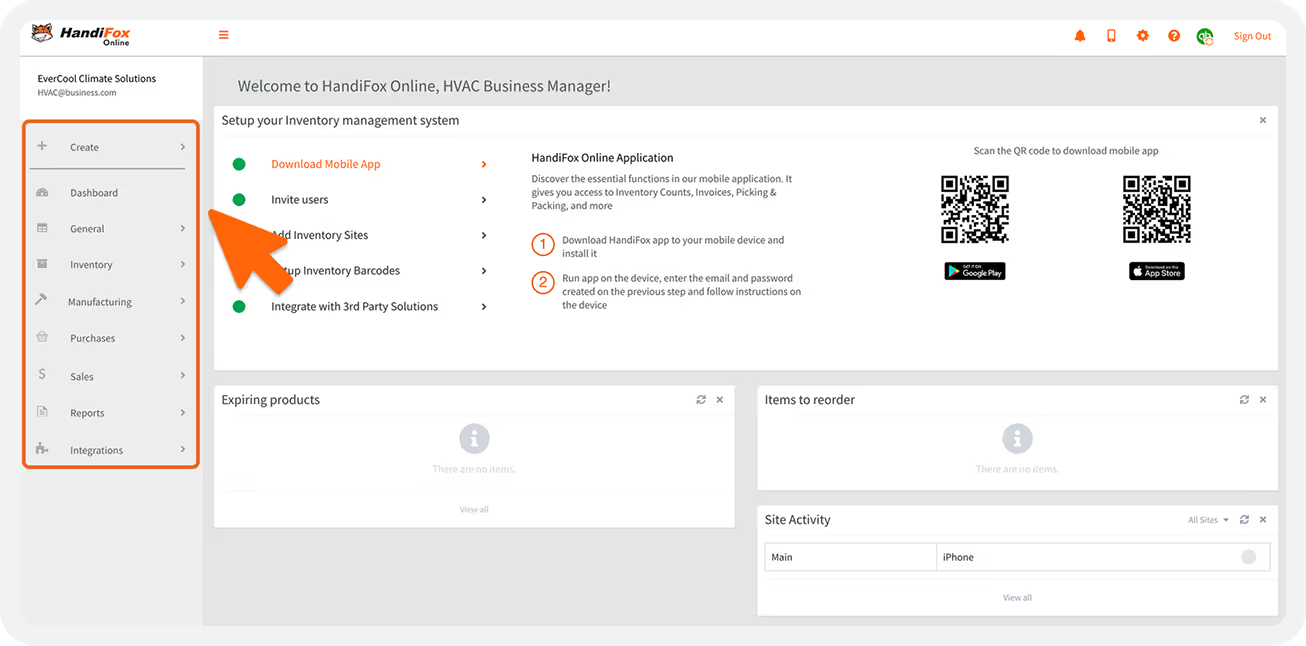
Sidebar menu: inventory, purchasing, sales, reports, and QuickBooks Online connection

1
Option 1: From inside HandiFox Online
Sidebar Menu is your main navigation hub.
2
Create+ button
Provides instant access to all transaction types and data points.
3
Dashboard
The Dashboard displays the key vitals of your inventory operations at a glance, including:
items that need reordering
SKUs approaching expiration
mobile activity from field devices
counting sessions awaiting manager approval
4
General
In the General module, you can:
Add or edit inventory locations
View which mobile devices are assigned to each location (for more details on how to connect a mobile device to your HandiFox Online account, refer to Step 7)
5
Inventory
The Inventory module is the core of HandiFox Online. Here’s what you can do:
Item List
View all SKUs, whether synced from QuickBooks Online or created manually, and customize the list view by adjusting columns.
Serial and Lot Numbers
Assign serials, lot numbers, and expiration dates to items that require detailed tracking.
Barcodes
Record existing barcodes, generate new ones, and print barcode labels.
QOH Viewer
Get a bird’s-eye view of inventory levels across all sites and set reorder points to automate restocking.
Counting Sessions
Conduct full or cycle inventory counts. You can add items manually or scan them in using a barcode scanner.
Transfer Center
Conduct full or cycle inventory counts. You can add items manually or scan them in using a barcode scanner.Move inventory between sites by selecting the source, destination, and items being transferred.
6
Manufacturing
If your business involves production or light assembly, the Manufacturing module helps you stay organized.
Create Bills of Materials (BOMs), also known as manufacturing presets, to define finished products and their components.
When generating new manufacturing orders, you can reuse these presets to save time and prevent repetitive data entry.
7
Purchases
The Purchases module helps you manage suppliers and inbound stock:
Vendors
Your vendor list will automatically sync from QuickBooks Online (if connected). If not connected to QuickBooks Online,  you can batch-import vendors or add them one by one.
Automatic Replenishment
Plan what to order and when, using historical data or predefined reorder points.
Purchase Transactions
Create Item Receipts to check inventory into your warehouse, or generate Purchase Orders and receive items against them.
8
Sales
The Sales module is where you handle outgoing transactions:
Customers
Your customer list syncs from QuickBooks Online. If not connected to QuickBooks, batch-import or add them one by one.
Transactions
Create Invoices, Sales Orders, Estimates, Sales Receipts, Credit Memos, and Payments directly within HandiFox.
Price Levels
Set up custom pricing rules for selected customers or items to automate your pricing strategy.
9
Reports
The Reports module provides access to a range of analytics tools that help you:
Track performance across sites
Analyze sales and purchasing data
Make informed, data-driven business decisions
10
Integrations and all add-ons
Under Integrations and Add-ons, you can manage your connection with QuickBooks:
Use the Connect/Disconnect button to link or unlink your QuickBooks company file.
If you haven’t connected yet, check out Step 2 and watch our QuickBooks Integration video for a step-by-step walkthrough.

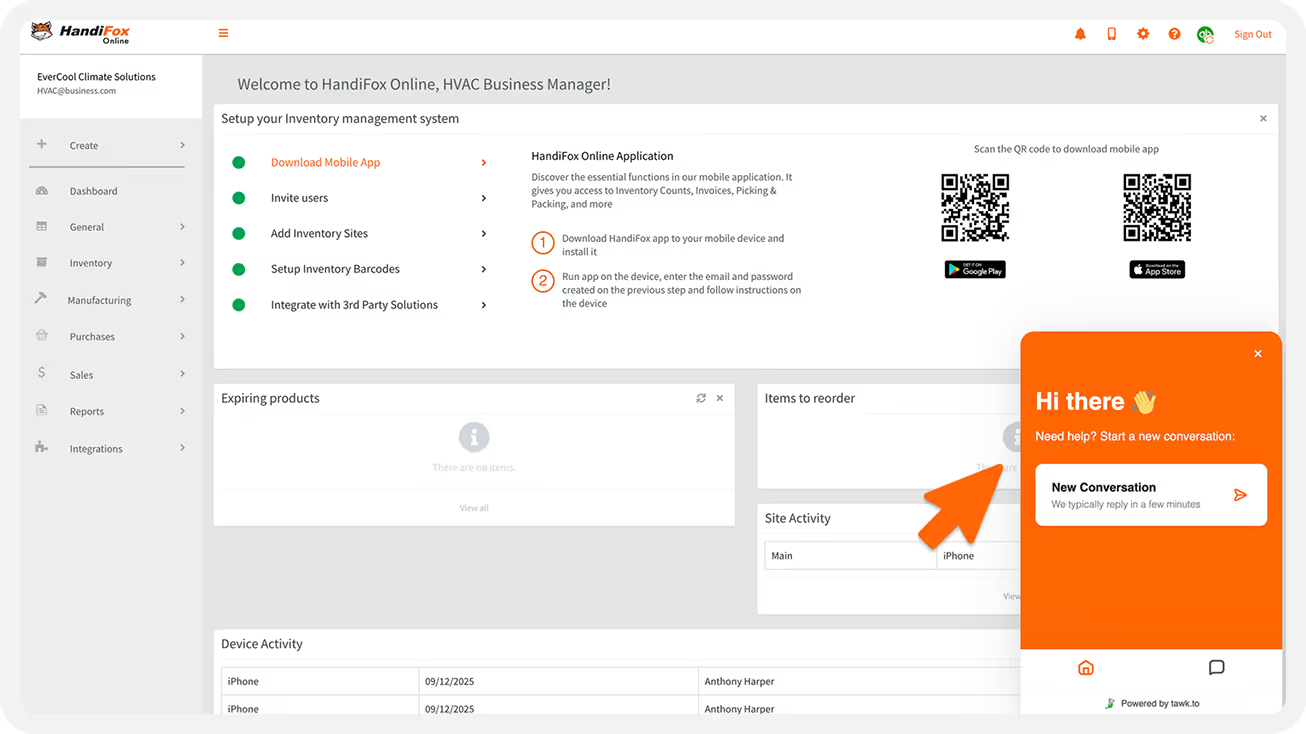
AI assistant

If you’re pressed for time or struggling to locate or understand a certain feature or workflow, ask our built-in AI Assistant.
It’s available throughout the system to provide quick, context-aware guidance whenever you need it.
Step 2
Connecting to QuickBooks Online
HandiFox Online integrates seamlessly with QuickBooks Online, one of the world’s leading cloud-based accounting systems. Together, they form a powerful duo — QuickBooks takes care of your accounting, while HandiFox expands your capabilities for inventory management, purchasing, and sales operations.

Top-right corner: key settings and user management

Once connected, HandiFox Online keeps a synchronized copy of your products, vendors, and customers. It tracks all inventory movements (transfers, purchases, and sales), and keeps QuickBooks updated with accurate, real-time quantities.
If you’ve been using test data and then connect HandiFox to your QuickBooks Online company, that test data will be cleared during the first synchronization. Make sure to connect only after you’re ready to start working with your real company data.
While HandiFox manages day-to-day inventory activity, accounting tasks remain entirely in QuickBooks Online, which now benefits from up-to-date operational data coming in from HandiFox.

Connecting your QuickBooks company

You can connect HandiFox Online to your QuickBooks Online company in just a few steps. Choose whichever method is more convenient for you.
1
Option 1: From inside HandiFox Online
Sign in at app.handifox.online.
Go to Integrations → All Add-ons.
On the next page, select Connect to QuickBooks.
Log in to your QuickBooks Online account (if you aren’t already).
Choose the company file you want to link and authorize access.
2
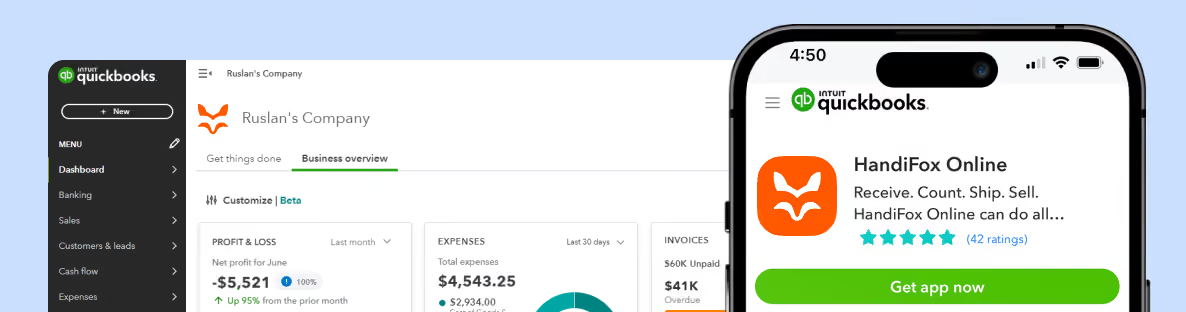
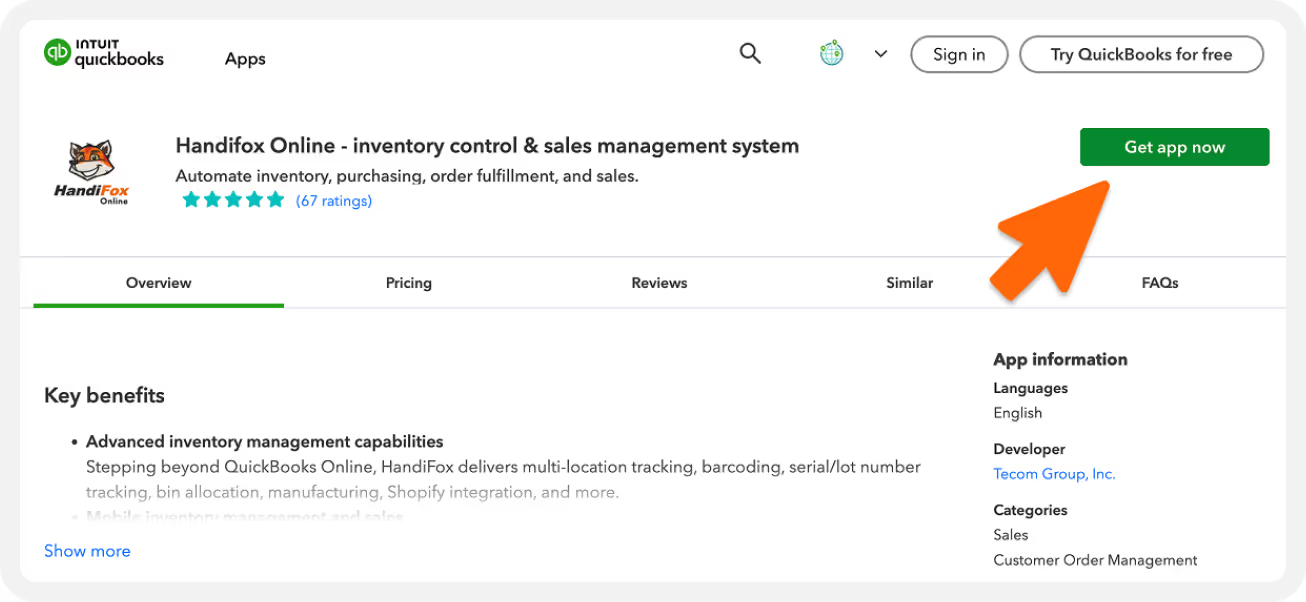
Option 2: From the QuickBooks App Store
Visit apps.intuit.com.
Search for HandiFox Online, or follow the direct listing link.
Click Get App Now and follow the prompts to connect.
Once connected, HandiFox begins reading and downloading all relevant company data — products, vendors, customers, and transactions. The initial sync may take a few minutes, depending on the size of your QuickBooks company file.

Understanding synchronization

The integration between HandiFox Online and QuickBooks Online is bidirectional. That means both systems exchange information automatically to keep data aligned.
Here’s how it works:
Inventory, Purchase, and Sales Data:
HandiFox pulls updated information from QuickBooks and posts new or edited transactions back to it.
Real-time Automatic Syncs:
A full synchronization runs automatically every time you save your work in the app.
Real-Time Updates:
New data created in HandiFox (like a new sales order) uploads to QuickBooks instantly. Updates made in QuickBooks, such as new products, customers, or transactions, are downloaded into HandiFox right away.
Step 3
Setting up HandiFox Online (key settings and user management)
Now that you’re familiar with the HandiFox Online interface and connected to QuickBooks Online, it’s time to configure your account settings.

Getting to settings

All system-wide preferences and company configurations are managed from the Settings section of the web app.
Open app.handifox.online and sign in.
Click the Settings ⚙️ icon in the top-right corner.

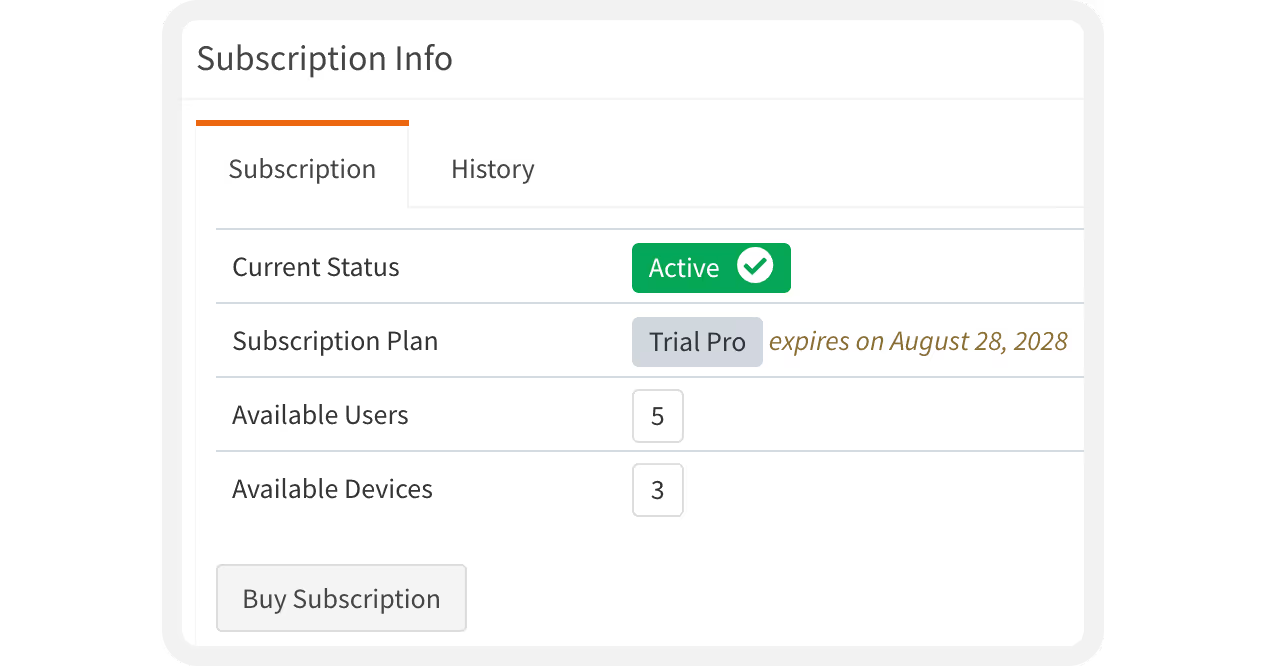
Subscription info

Under Subscription Info, you can:
Review your current plan details
Change or upgrade your subscription
Purchase a new plan
In the History tab, you’ll also find records of all subscription purchases and paid invoices.

User management

In User Management, you can add, remove, or edit users and their permissions.
Only Owners and Managers can invite new users.
Click the Plus ➕ button to invite a new team member.
Enter their email address, select a role, and adjust permissions if needed.
Roles define the scope of access — and permissions are highly customizable. You can control whether a user can view, edit, or create specific transaction types or data.
Once you save, HandiFox automatically sends the invite email with registration instructions.

Settings

1
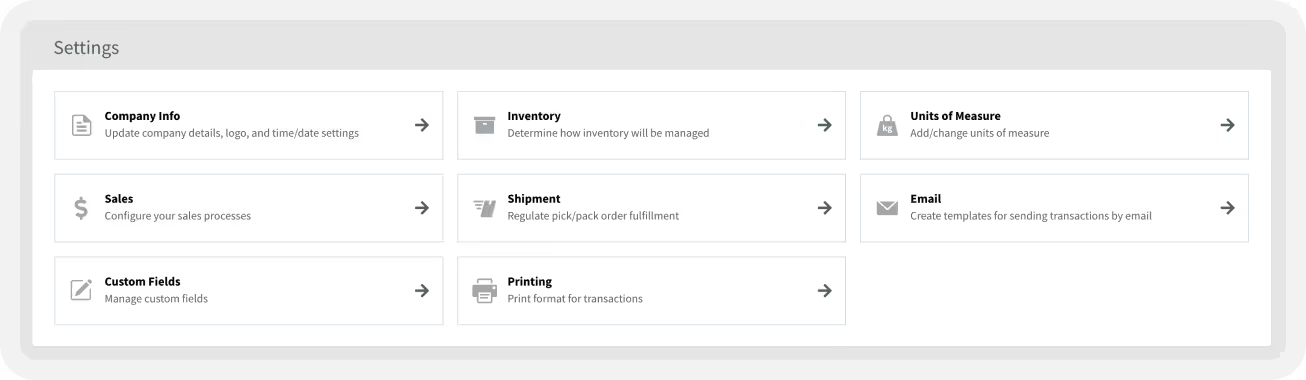
Company settings
Under Company Settings, you’ll find options that apply across all modules of HandiFox Online.
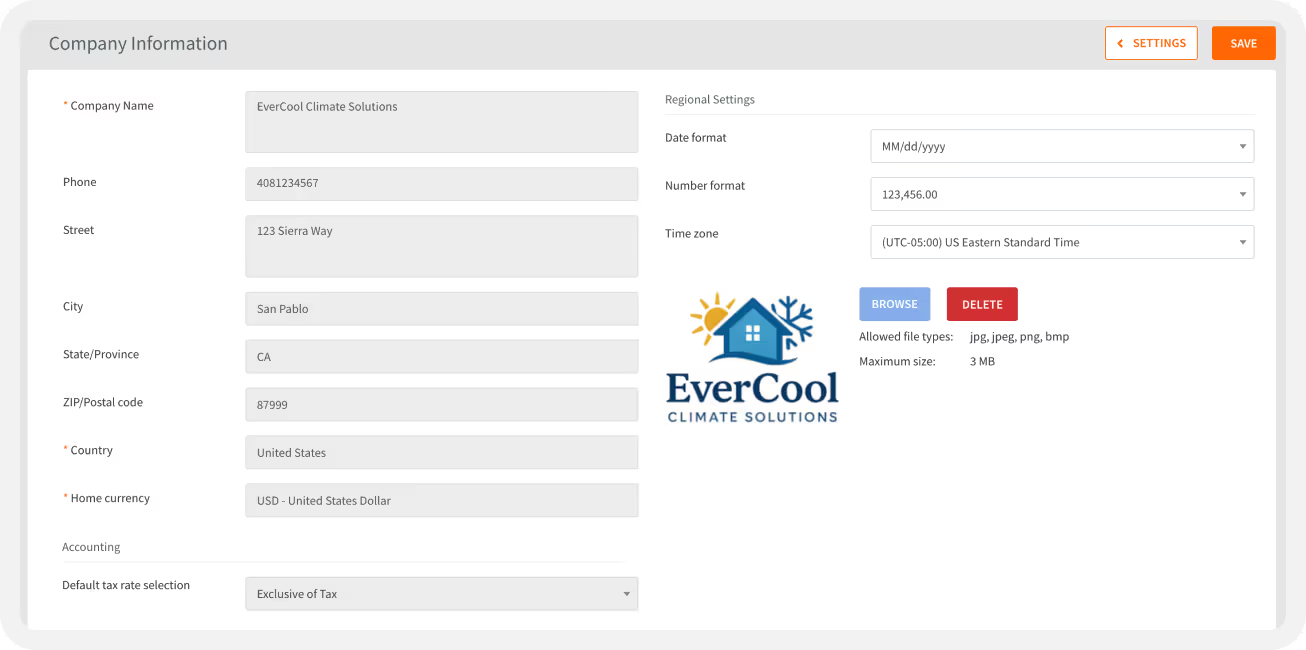
Company Information:
Add or review your company name, address, and other key details. If your account is connected to QuickBooks Online, this information is synced automatically and should be updated only in QuickBooks.
Regional Settings:
Set your date, number formats, and time zone.
Company Logo:
Upload a logo to appear on your purchase orders, sales orders, invoices, receipts, and other printed forms.
Taxes are also synced directly from QuickBooks Online.
2
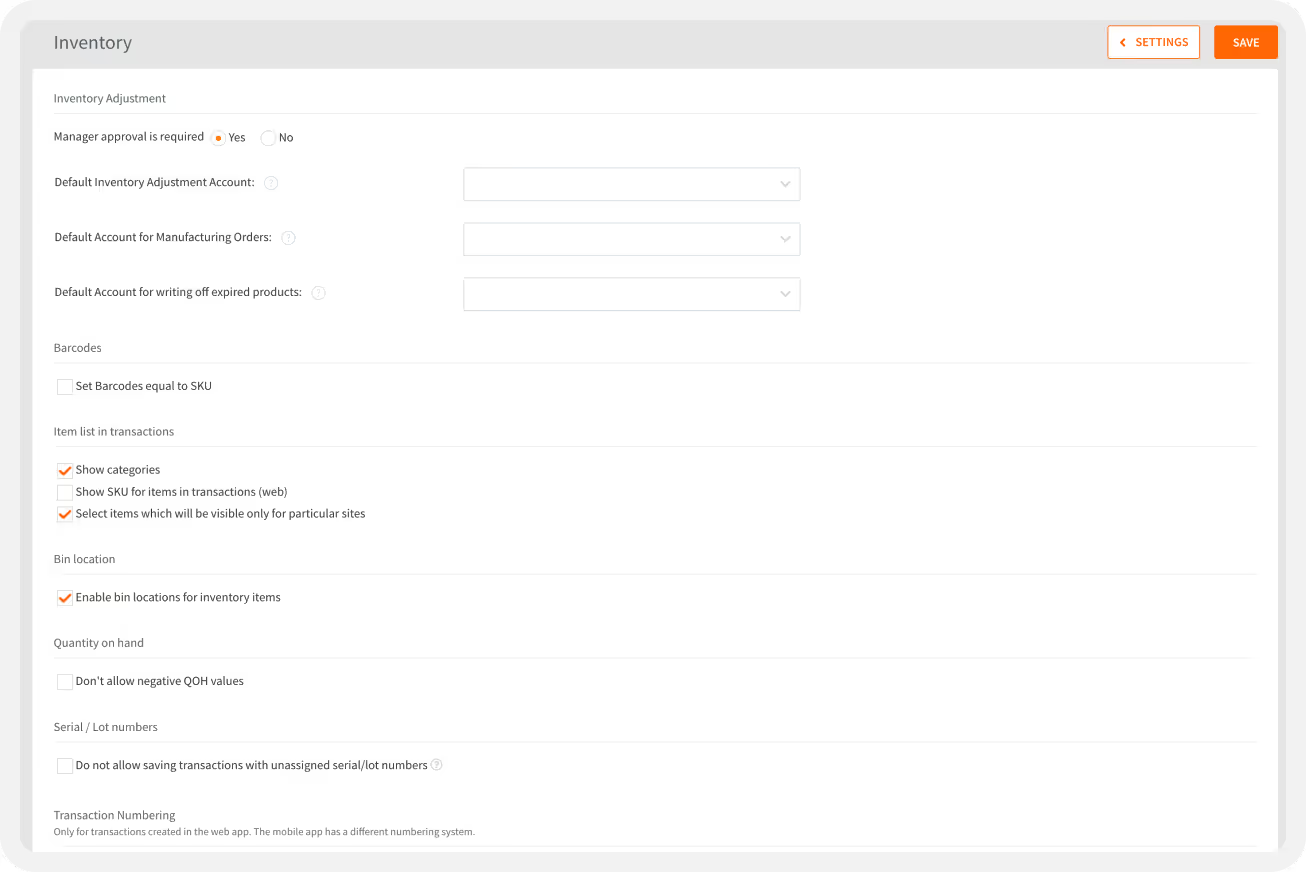
Inventory settings
In Inventory Settings, you can fine-tune how inventory is managed across your company.
Manager Approval:
Require approval for all quantity adjustments and counting sessions.
Barcodes = SKUs:
Automatically set item barcodes to match SKUs for easier scanning.
Display Options:
Choose whether to show categories and SKUs on transactions.
Item Visibility:
Control which items appear at each inventory location.
Bin Locations:
Enable bin tracking to help staff locate products quickly.
Negative Quantities:
Prevent users from saving transactions that result in negative on-hand quantities.
Serial/Lot Numbers:
Require complete serial or lot number data before transactions can be saved.
Transaction Numbering
In Transaction Numbering, you can customize how purchase and inventory transactions are numbered. Tailor numbering patterns to match your internal record-keeping system.
3
Units of measure
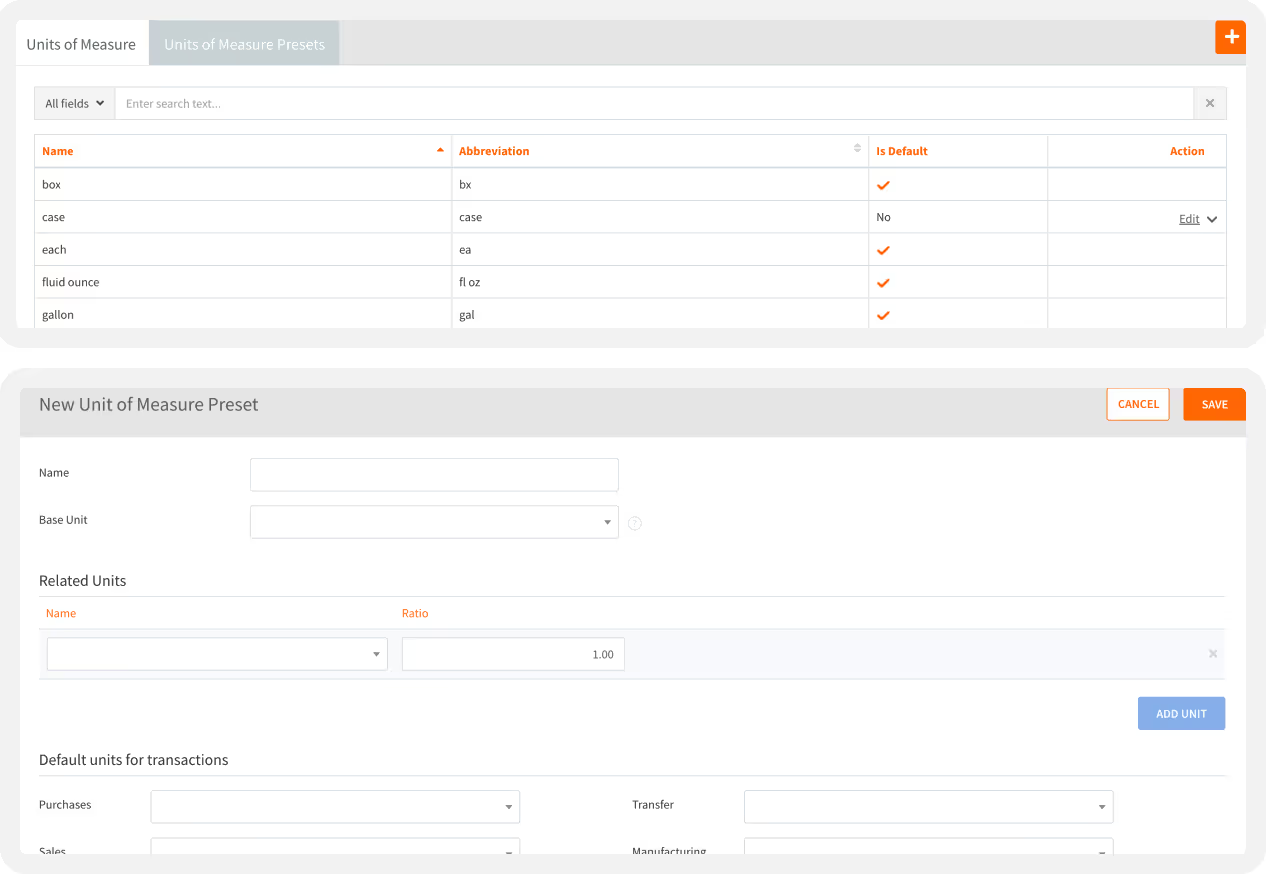
HandiFox Online lets you create multiple units of measure to match how you purchase, store, and sell products.
Define a base unit and related units.
Set conversion ratios and default units for different transaction types.
Create Unit of Measure Presets to save time when configuring similar items.
Presets help you apply consistent units across multiple products with just a few clicks.
4
Sales settings
The Sales Settings section controls how your sales transactions behave in both the web and mobile apps.
Customer Signature:
Choose whether to capture customer signatures on invoices. You can make this step mandatory if needed.
Sales Form Fields:
Add or remove optional fields such as discounts, shipping charges, deposits, item notes, or tendered amounts.
Invoice Sync & Automation:
  • Allow invoice prices to update automatically when linked sales order prices are edited.
  • Sync PO numbers with a QuickBooks custom field.
  • Assign all invoices to a specific QuickBooks location.
Payment Methods:
Add accepted payment types.
FEFO Fulfillment:
Ensure that soon-to-expire items are sold first (First-Expired-First-Out).Ensure that soon-to-expire items are sold first (First-Expired-First-Out).
Auto-Save:
Enable auto-save to protect work before a session times out.
Custom Notes & Numbering:
Personalize numbering patterns and add notes to your sales documents.
5
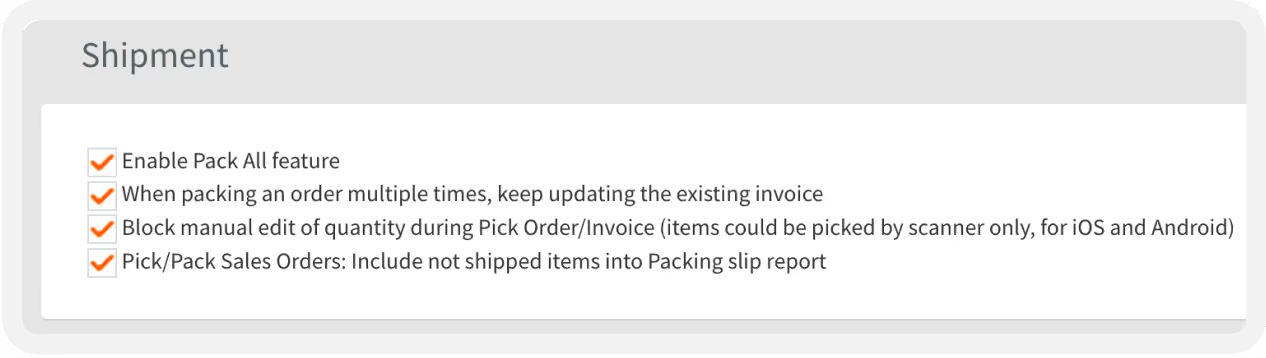
Shipment settings
Shipment Settings let you control how picking and packing workflows operate.
Pack All
Allow users to complete packing with a single checkbox in the mobile app.
Update Existing Invoices
Keep updating the same invoice for multi-stage packing instead of creating new ones.
Scanner-Only Picking
Restrict quantity edits so that items can only be picked via barcode scanning (on iOS and Android).
Packing Slip Report
Choose to include not-yet-shipped items if desired.
6
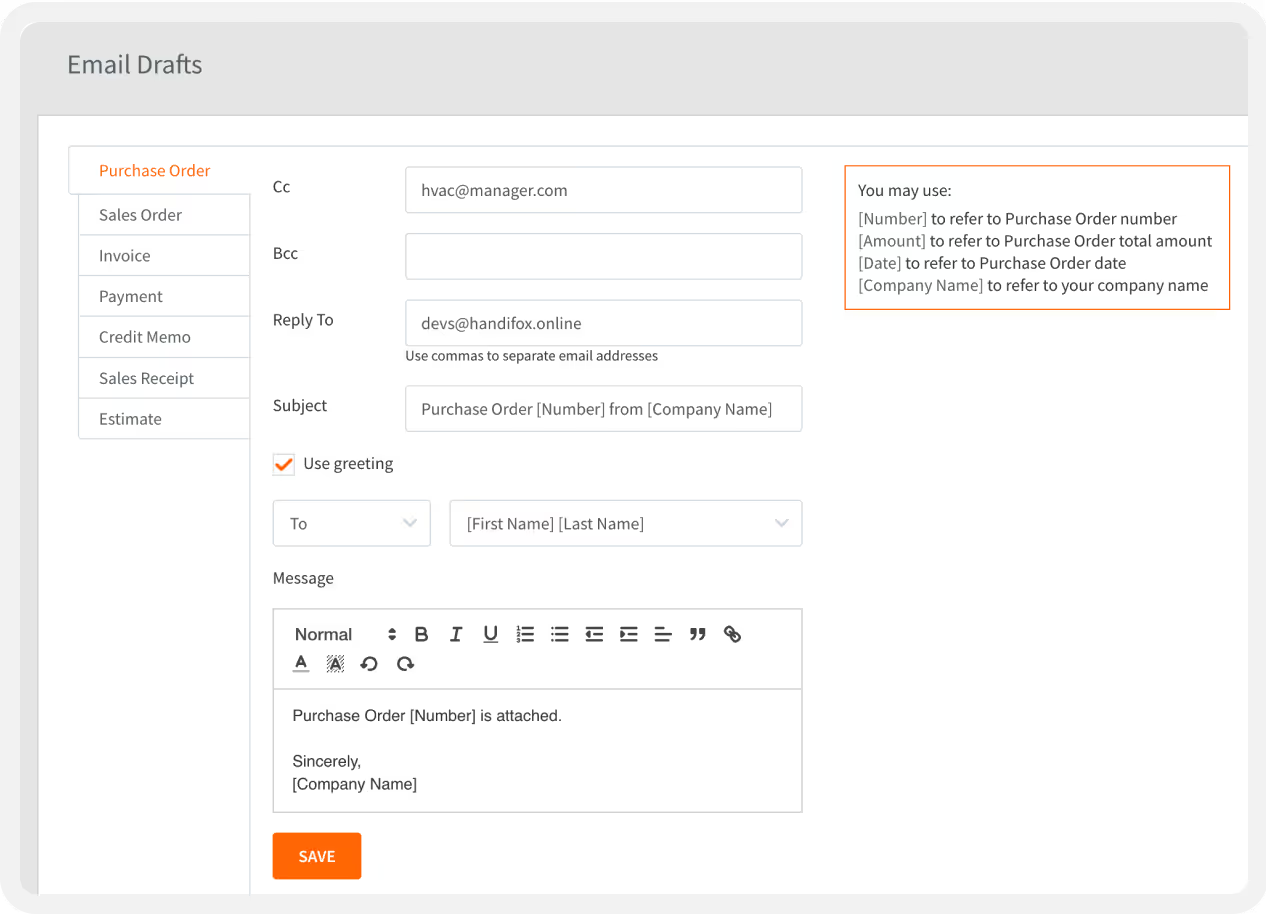
Email settings
HandiFox Online allows you to email digital copies of your transactions directly to customers and vendors.
Send purchase orders, sales orders, invoices, receipts, payments, and credit memos.
Customize each transaction’s email template to reflect your brand and tone.
7
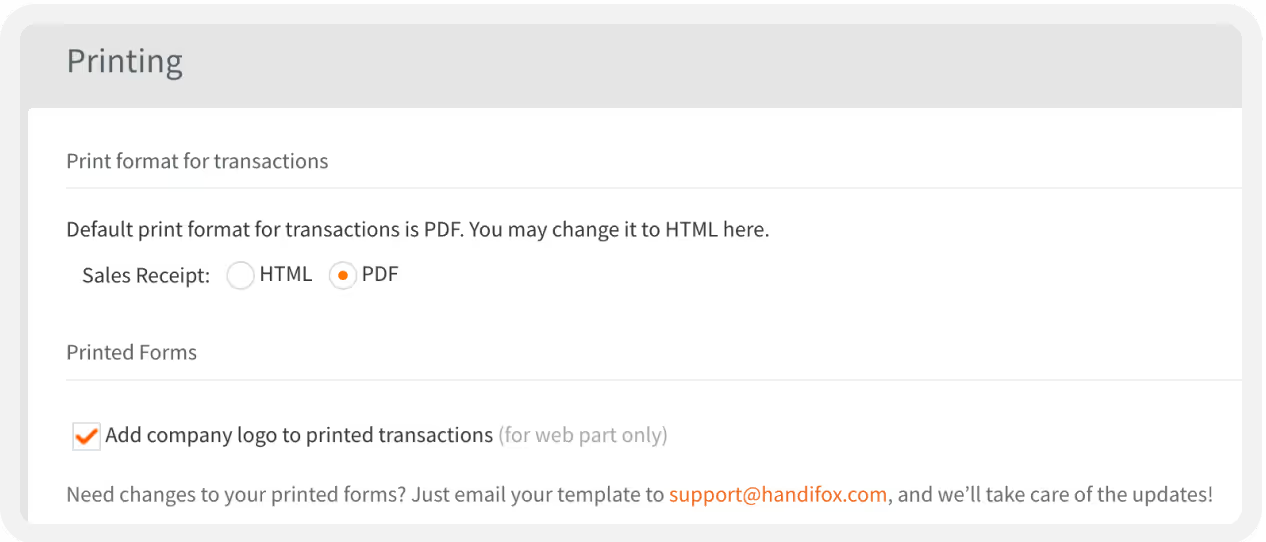
Printing settings
In Printing Settings, you can set default printing preferences and include your company logo on all forms. This keeps your documents looking professional and consistent across every transaction type.
Step 4
Adding items
Once your account is connected and configured, it’s time to start building your inventory catalog.

Understanding item types

HandiFox Online supports three item types:
Inventory items — fully tracked across all locations.
Non-inventory items — not quantity-tracked; ideal for materials or goods you don’t stock regularly.
Service items — great for things like labor, installation, or one-time services.
If your account is already connected to QuickBooks Online, your existing item list will automatically sync into HandiFox. If not, you can add items manually or import them in bulk later using a CSV file.

Creating a new item

To create a new item:
Open the Item List.
Click the Plus (+) button.
Choose whether you’re adding an Inventory, Non-inventory, or Service item.
For this example, we’ll create an Inventory item.
1
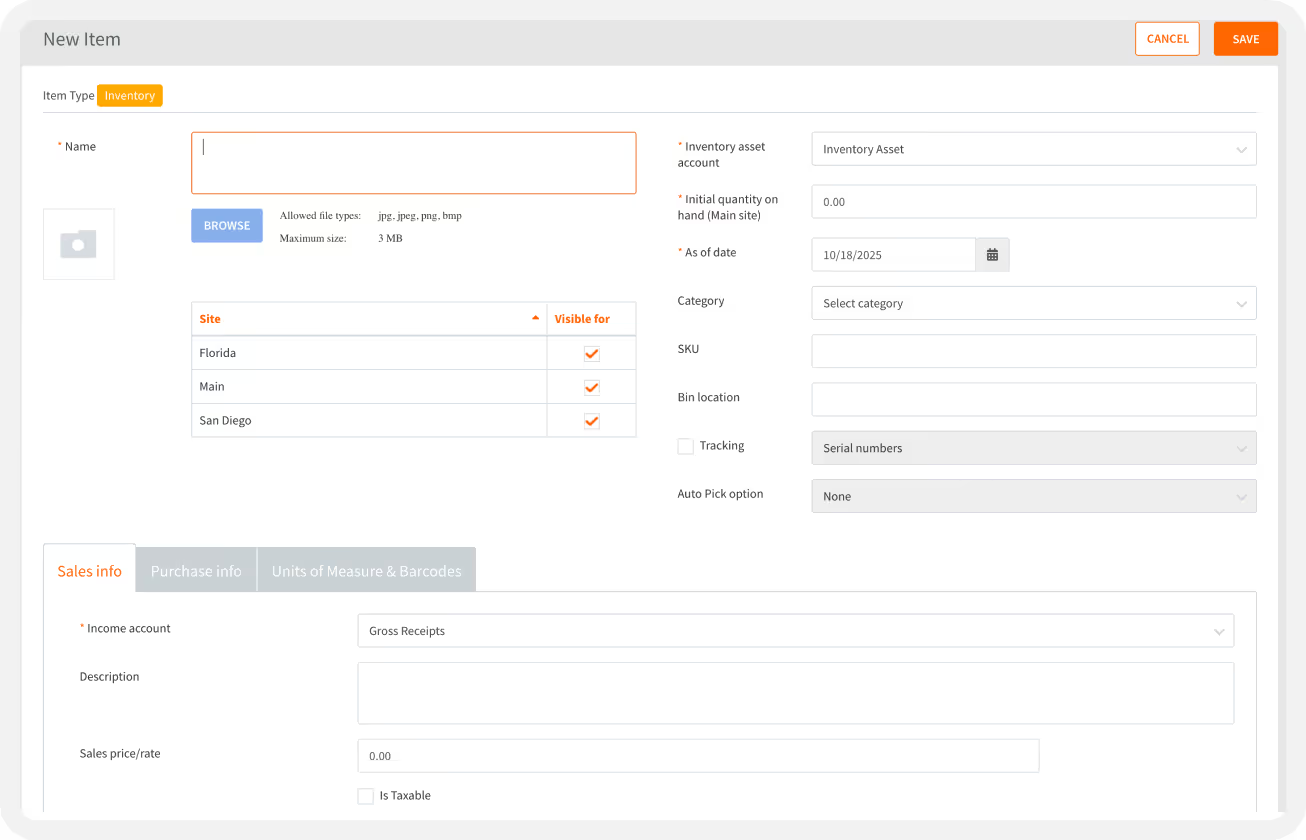
Item Details
Fill out the basic item information:
Name – Enter a unique item name. Duplicate names aren’t allowed.
Picture – Click Browse to upload an image. If your account is connected to QuickBooks, the picture will sync automatically both ways.
Visibility by Site – If your company tracks multiple inventory locations, select where this item will be available.
Inventory Asset Account – (QuickBooks-connected accounts only) Choose from your QuickBooks inventory asset accounts.
Initial Quantity on Hand – Starts at zero and cannot be negative.
As of Date – Select the date from which you’ll begin tracking this item.
Category – Optionally assign the item to a category for better organization.
SKU – Add a stock keeping unit identifier.
Bin Location – Define where the item is typically stored (requires bin locations to be enabled in Inventory Settings).
Tracking – Enable tracking by Serial Number, Lot Number, or Expiration Date if applicable.
Auto-Pick – Choose how the system automatically selects tracked items during transactions (First-In, First-Out or First-Expired, First-Out).
2
Sales Information
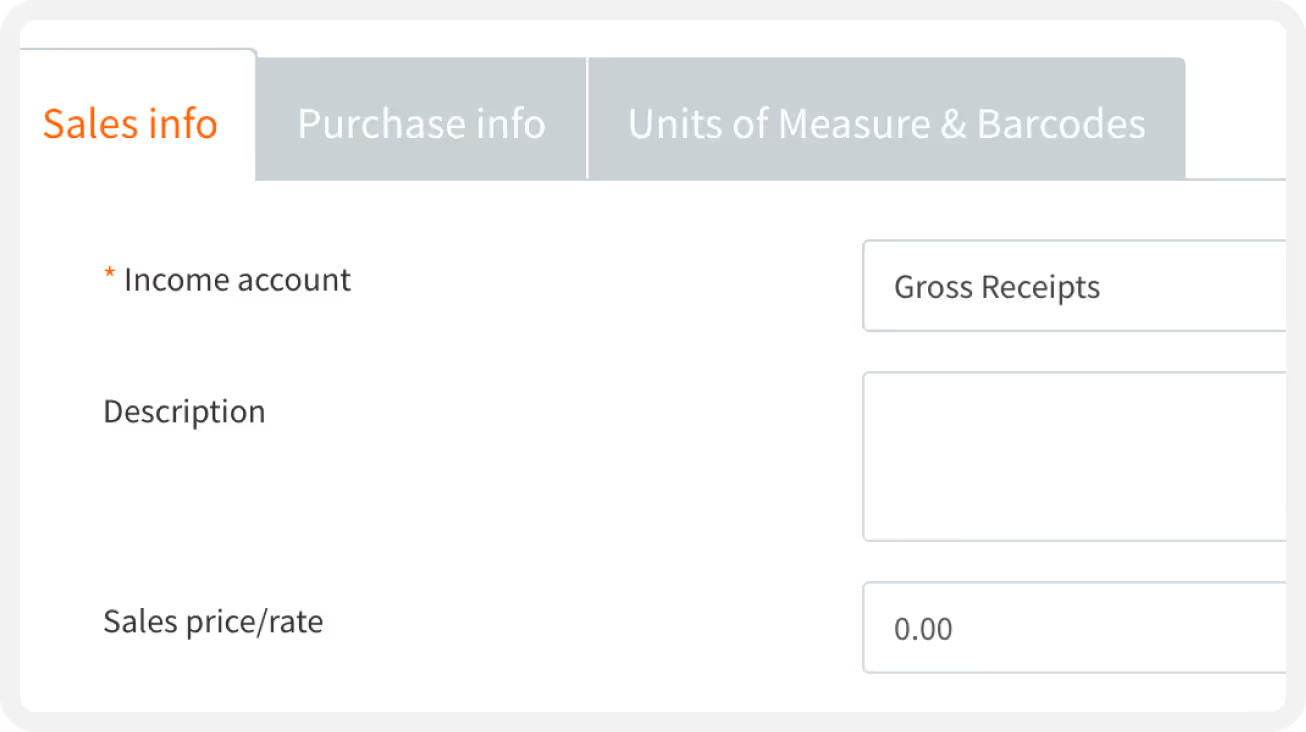
In the Sales Info tab, define how this item appears in sales transactions:
Sales Description – Add the description that will appear on invoices and orders.
Sales Price/Rate – Set the default price or rate (defaults to 0.00).
Income Account – (QuickBooks-connected accounts only) Select the income account for sales revenue.
Is Taxable – Check this box if the item should be taxable by default.
3
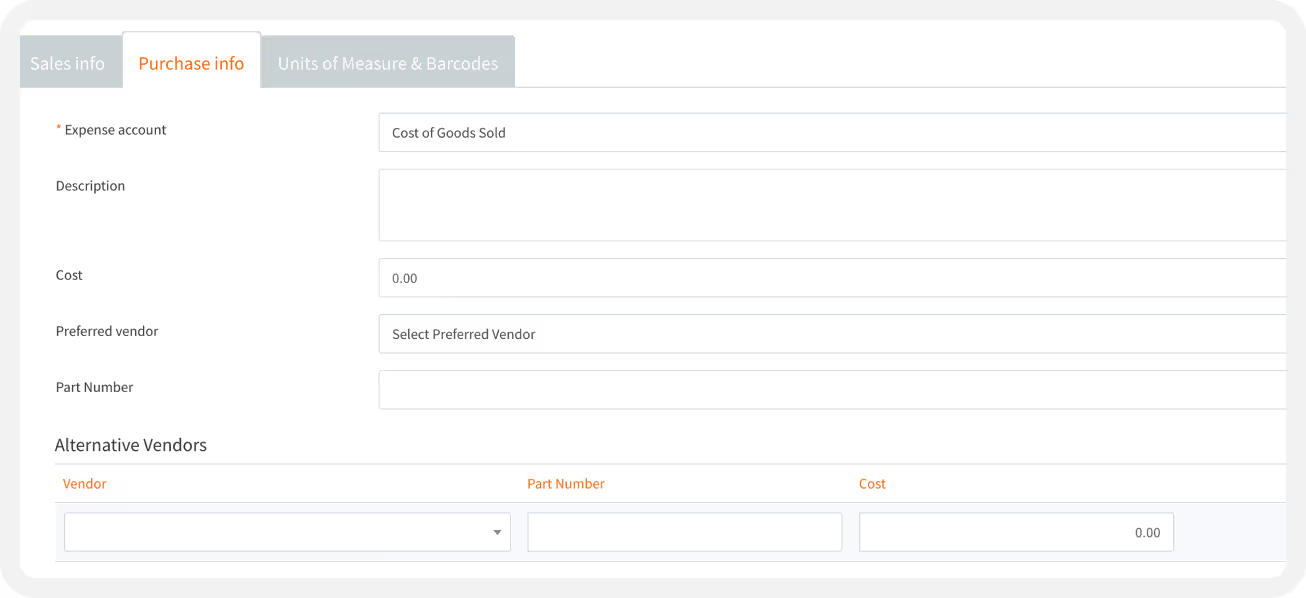
Purchasing Information
Next, switch to the Purchasing section to enter supplier and cost details:
Expense Account – (QuickBooks-connected accounts only) Choose the account for cost tracking.
Purchase Description – Add a purchase-side description.
Cost – Enter the item’s purchase cost (defaults to 0.00).
Preferred Vendor – Select your primary supplier.
Part Number – Add a manufacturer or vendor part number for easy identification.
Alternative Vendors – If you buy this item from multiple suppliers, click Add Vendor to include them. Each vendor can have its own part number and cost.
4
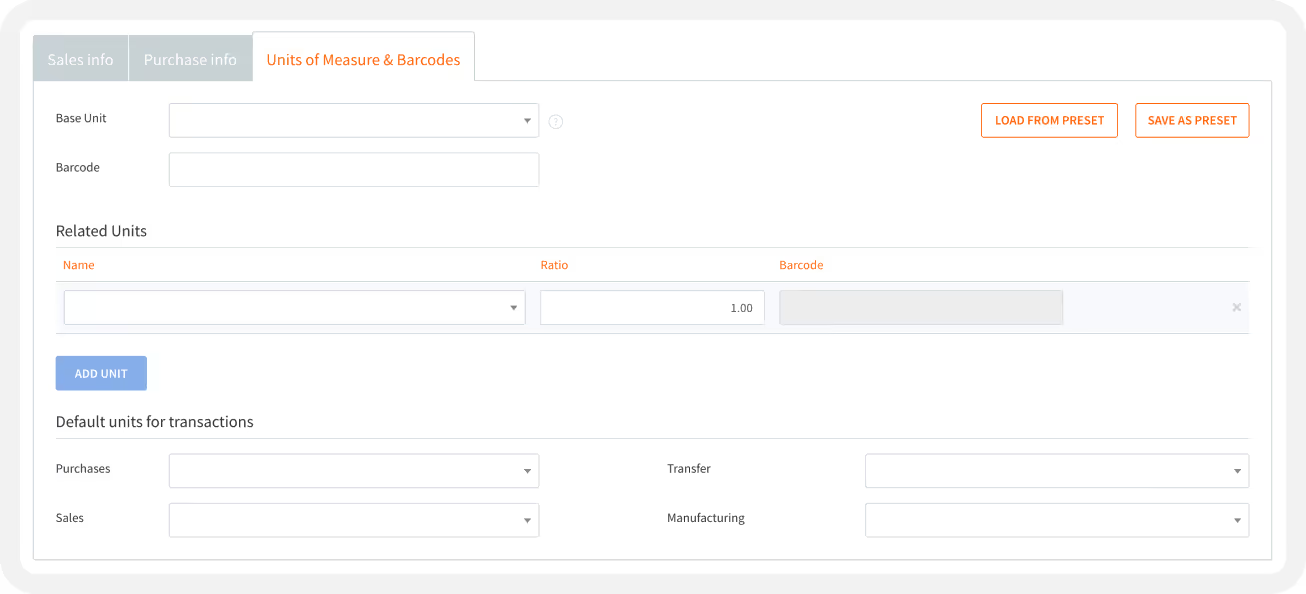
Units of Measure and Barcodes
Setting up Units of Measure (UoM) ensures your items align with how you buy, store, and sell them.
Base Unit – Usually the smallest measurable quantity (e.g., piece, bottle, or box).
  • Choose from the list or create a new one.
  • Enter a barcode for this base unit.
Related Units – Click Add Unit to define larger or related quantities.
  • Add the Name, Ratio (how many base units it contains), and Barcode.
Default Units by Transaction Type – Specify which unit applies by default in Purchases, Sales, Transfers and Manufacturing.

Saving and managing items

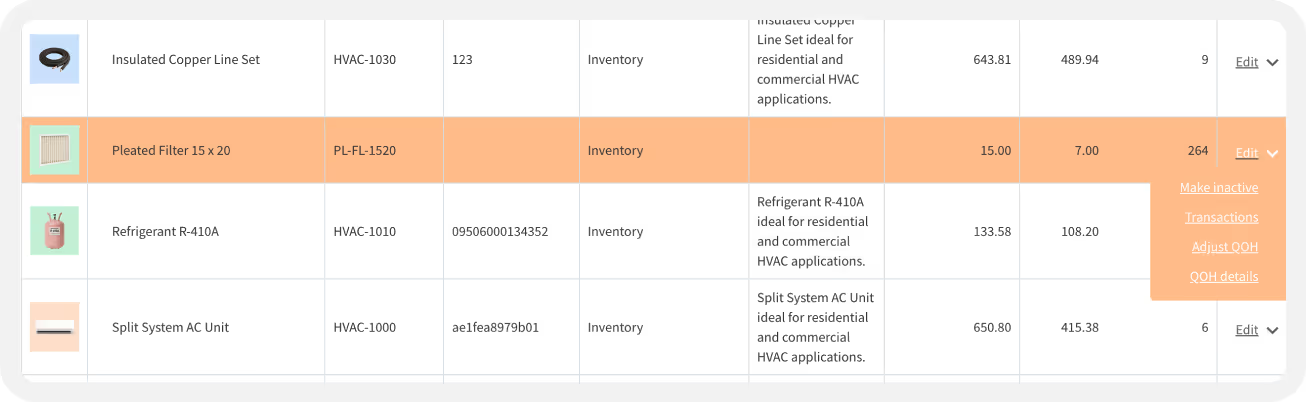
When everything looks good, click Save. Your new item will now appear on the Item List.
From here, you can:
Make the item inactive (instead of deleting it, to preserve past transaction history).
View transactions involving the item within a selected time period.
Adjust quantities on hand.
Check inventory levels across all sites.
Step 5
Adding barcodes
Barcodes make inventory management faster and more accurate.
With HandiFox Online, you can assign barcodes to your products so they can be scanned during transactions, counting sessions, and other day-to-day operations — both in the Web App and the Mobile App.

Assigning barcodes in the web app

To add or generate barcodes from the web app:
Sign in to app.handifox.online.
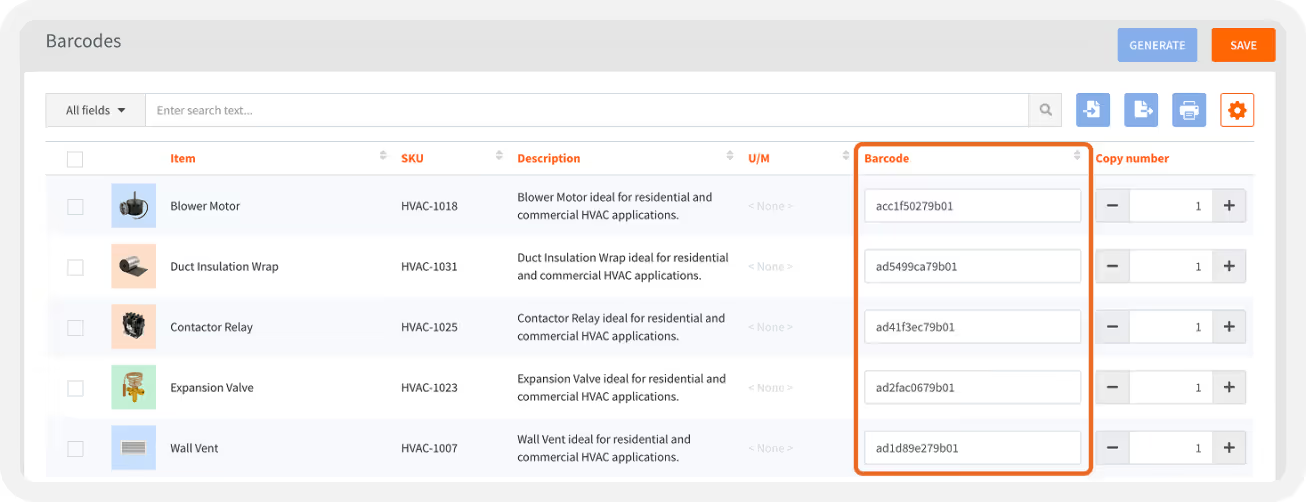
Go to Inventory → Barcodes.
In the Barcode column, enter or edit barcode values for your items.
Click Save when you’re done.
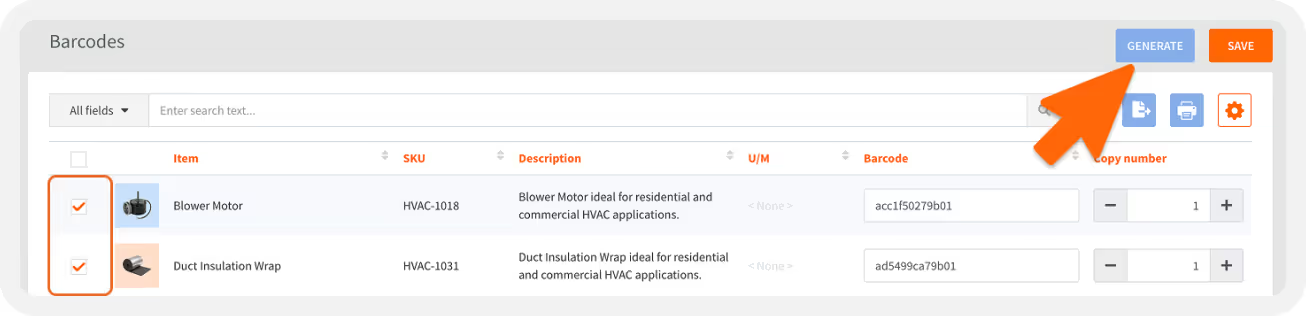
If you’d rather have HandiFox generate barcodes automatically, select one or more products or services and click Generate.
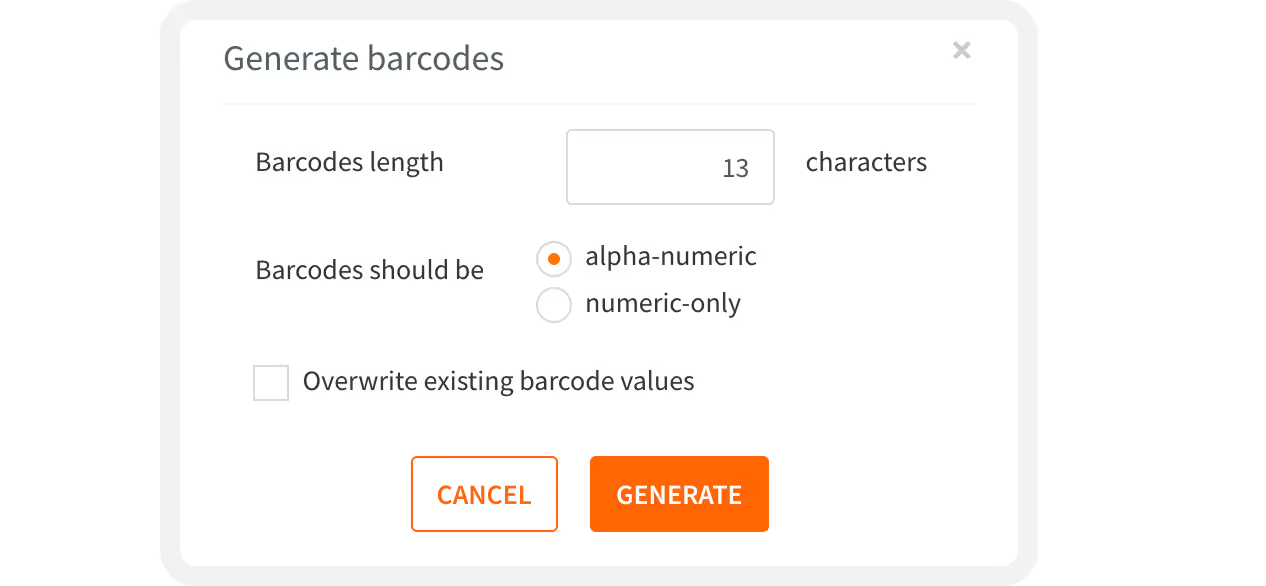
A pop-up window will let you define how the barcodes are created:
Barcode Length – the number of characters in each barcode.
Character Type – choose Numeric only or Alphanumeric (letters + digits).
Overwrite Existing Barcodes – replace current barcodes with new values, if needed.
When you click Generate, HandiFox assigns a unique barcode number to every selected item.

Importing and exporting barcodes

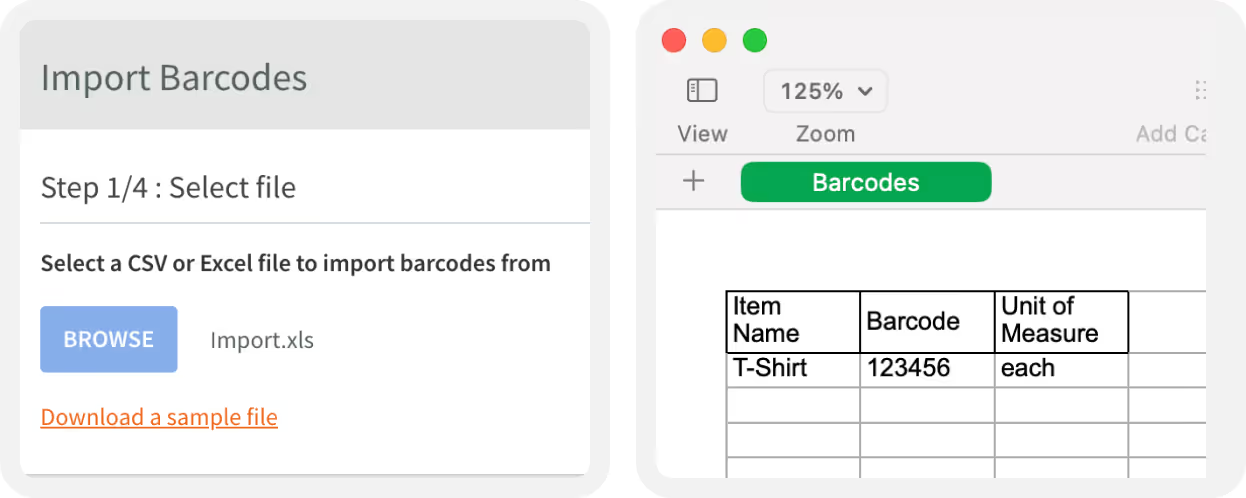
If you already maintain barcodes in a spreadsheet:
Click Import , choose your file, and follow the prompts.
Tip: download the sample file to make sure your spreadsheet matches the required format.
To save or share your barcode list, click Export  to download it as Excel (XLS) or CSV.

Printing Barcode Labels

Barcode labels can be generated and printed from the Web App.
Go to Inventory → Barcodes.
Use the checkboxes to select items you want to label.
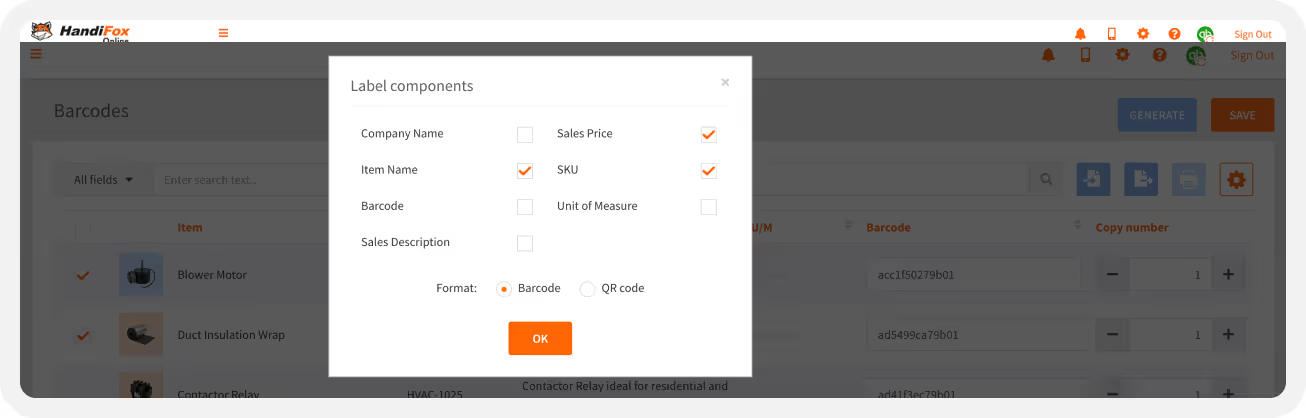
Enter the desired number of copies for each barcode in the Copy Number column.
Click the Print 🖨 icon.
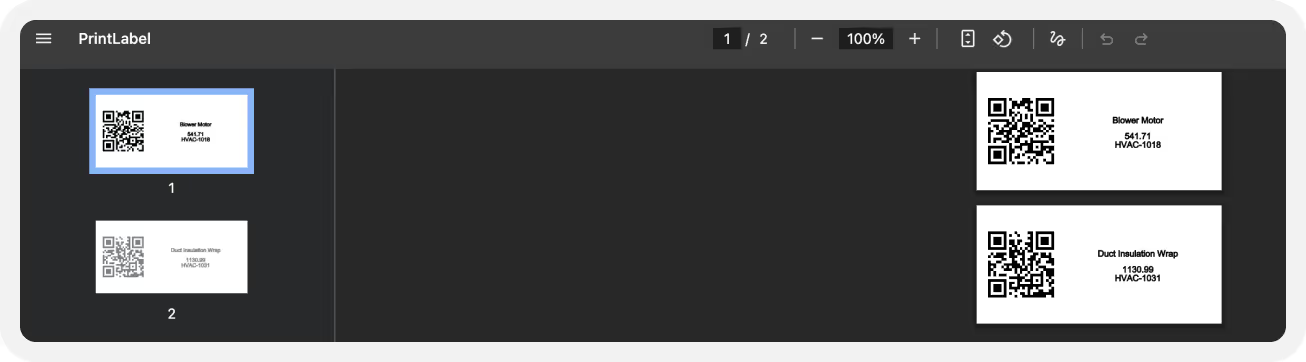
Then choose what information should appear on the labels and whether you want linear barcodes or QR codes.
HandiFox will generate a printable document that you can send directly to your printer or save as a PDF.

Next steps

Learn how to connect your HandiFox to a barcode scanner or how to scan barcode straight from your phone: Knowledge Base Barcoding.
Step 6
Creating transactions

Transaction Types in HandiFox

HandiFox Online supports a wide range of transaction types that help you manage your inventory and sales cycle from end to end:
Inventory Transfers — move stock between sites.
Counting Sessions — perform cycle or full inventory counts.
Purchase Orders — order items from vendors.
Inventory Receipts — receive ordered goods into stock.
Estimates and Sales Orders — manage customer orders and quotations.
Invoices and Sales Receipts — record completed sales.
Credit Memos — issue credits or refunds.
Each transaction type follows a similar workflow, so once you learn one, the rest will feel familiar. For this walkthrough, we’ll use a Purchase Order as an example.

Creating a Purchase Order

To create a new Purchase Order:
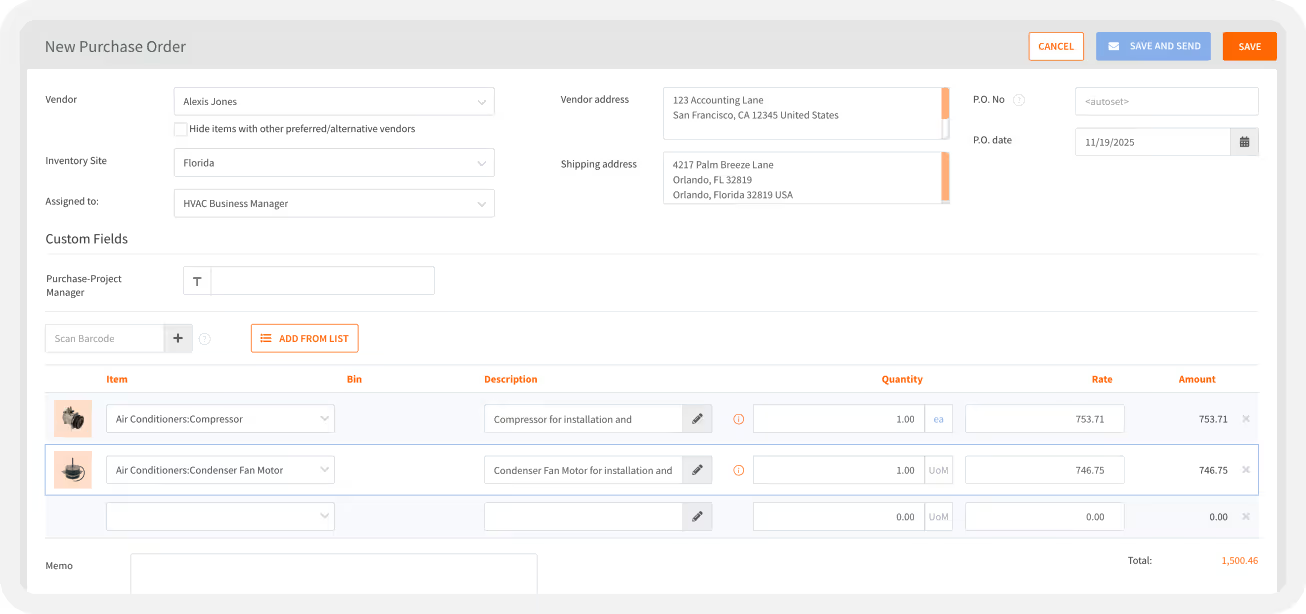
In the web app, go to Purchases → Purchase Transactions.
Click the Plus (+) button.
Choose Purchase Order from the list.
1
Selecting Vendor and Warehouse
Choose the Vendor from the dropdown list.
To limit the item list to products linked with that vendor, check Hide items with other preferred/alternative vendors’. This filters out items assigned to other suppliers.
Select the Warehouse where you’ll be receiving the order.
Optionally, assign a team member responsible for this transaction.
Vendor and shipping addresses fill in automatically — HandiFox pulls these from your vendor profile and selected warehouse.
A Purchase Order number is generated automatically, but you can override it or adjust the date if needed.
2
Using Custom Fields
If your company uses Custom Fields in QuickBooks Online, they’ll appear here as well. These fields sync automatically and can be configured in Settings → Company Settings.
For more details, see Step 3: Setting Up HandiFox Online.
3
Adding Products
Now it’s time to add products to your Purchase Order. You can do this in two ways:
Manually - Click into the Item field and select SKUs from the dropdown.
By Scanning - Place your cursor in the Scan Barcode field and scan items with a barcode scanner.
Each scanned or selected item appears instantly in your order.
When all items are added, fill out the Memo field if you’d like to include internal notes.
4
Saving or Sending the Purchase Order
You can complete the transaction in two ways:
Save and Send – Sends the Purchase Order via email to your vendor. You’ll be prompted to enter the recipient’s email, and the email template can be customized in your system settings.
Save Only – Stores the Purchase Order in your records without sending it immediately.
5
Locating Saved Transactions
To find your Purchase Order later:
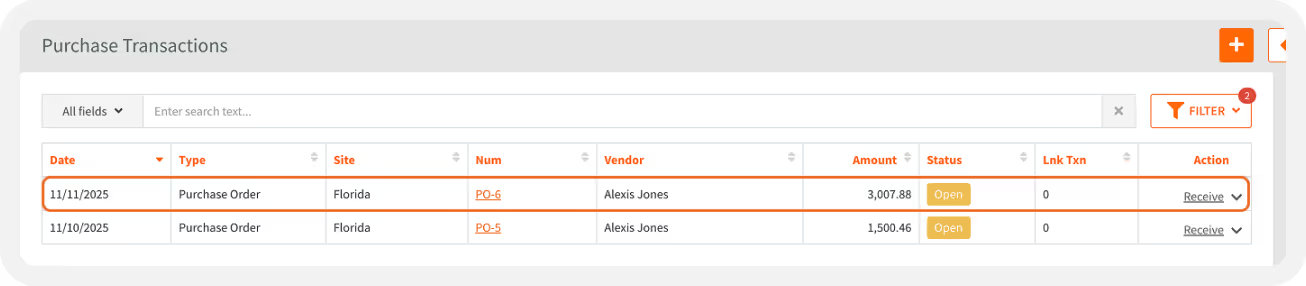
Go to Purchases → Purchase Transactions.
Use filters by status or date to locate the record quickly.
Click on a transaction number to open its details.

Finding Your Transaction in QuickBooks

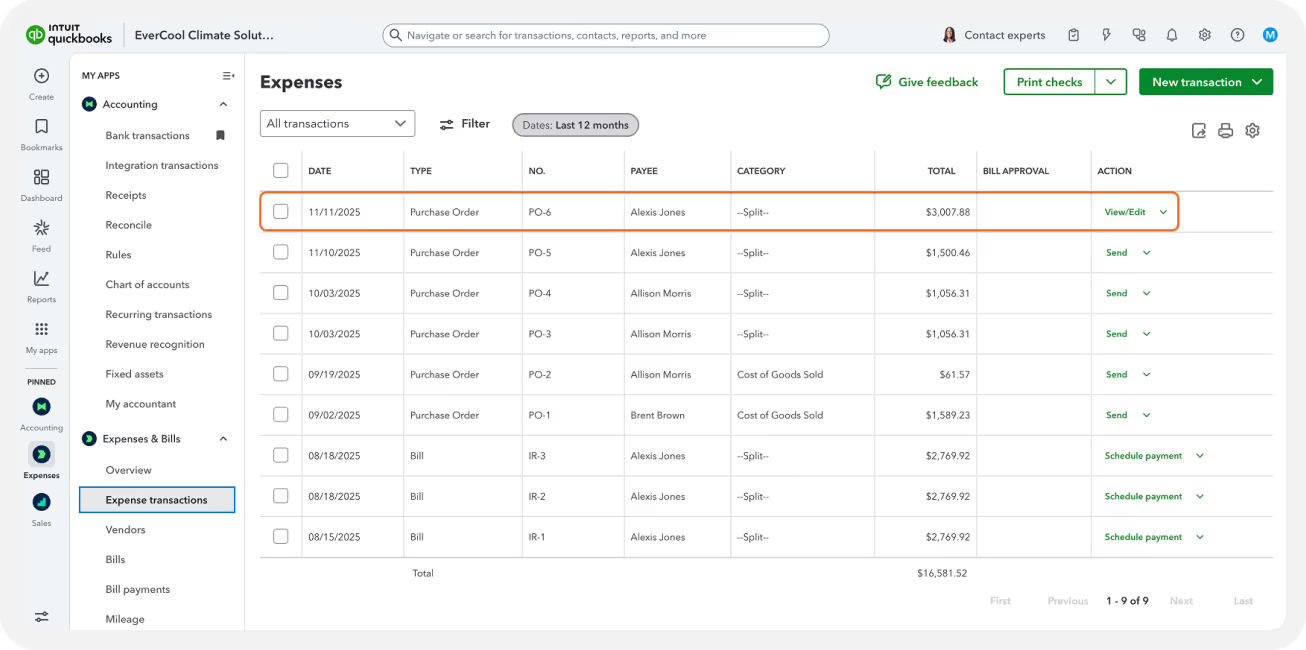
After synchronization, the Purchase Order appears automatically in your QuickBooks Online account under Expenses & Bills → Expense transactions
This ensures your inventory and accounting data stay perfectly aligned between both systems.

Next steps

You now know how to create and manage transactions in HandiFox Online.The same simple workflow applies to other transaction types like Sales Orders, Invoices, Transfers, and Counting Sessions.
For detailed step-by-step instructions on each type, visit our Knowledge Base:
Creating Sales Orders
Creating Invoices
Performing Inventory Counts
Transferring Inventory Between Sites
Creating Estimates
Creating Credit Memos
Creating Sales Receipts
Step 7
Getting to know the HandiFox Mobile App
With HandiFox Online, you can create and manage transactions right from your mobile device, whether you’re in the warehouse, at a job site, or on the go.
The mobile app is available for both Android and iOS devices.

Signing in to the HandiFox Mobile App for the First Time

To start using HandiFox on your mobile device, follow these simple steps:
Download the Mobile App
Get the HandiFox Online Mobile App from Google Play (Android) or the App Store (iOS).
Sign In
Open the app and sign in using the same email and password you use for the HandiFox web app.
Select Data Download Period
Choose how far back you want to download transactions — 1, 3, 6, or 12 months.

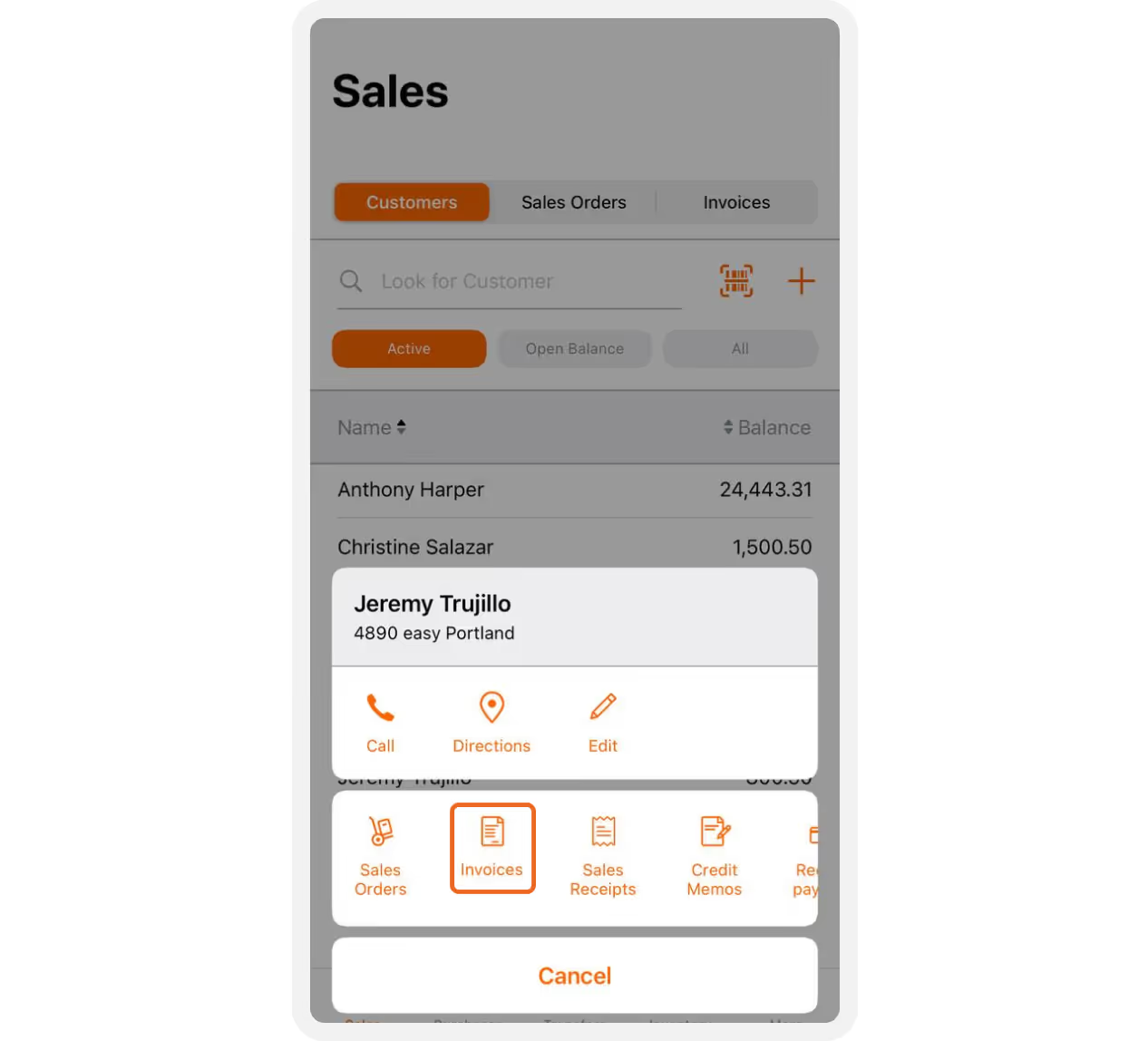
Navigating to the Customer

In the bottom tab bar, tap Sales › Customers.
Scroll to find or search for the customer’s name.
Tap the customer record, then select Invoices.
This will display a list of all existing invoices for the selected customer.

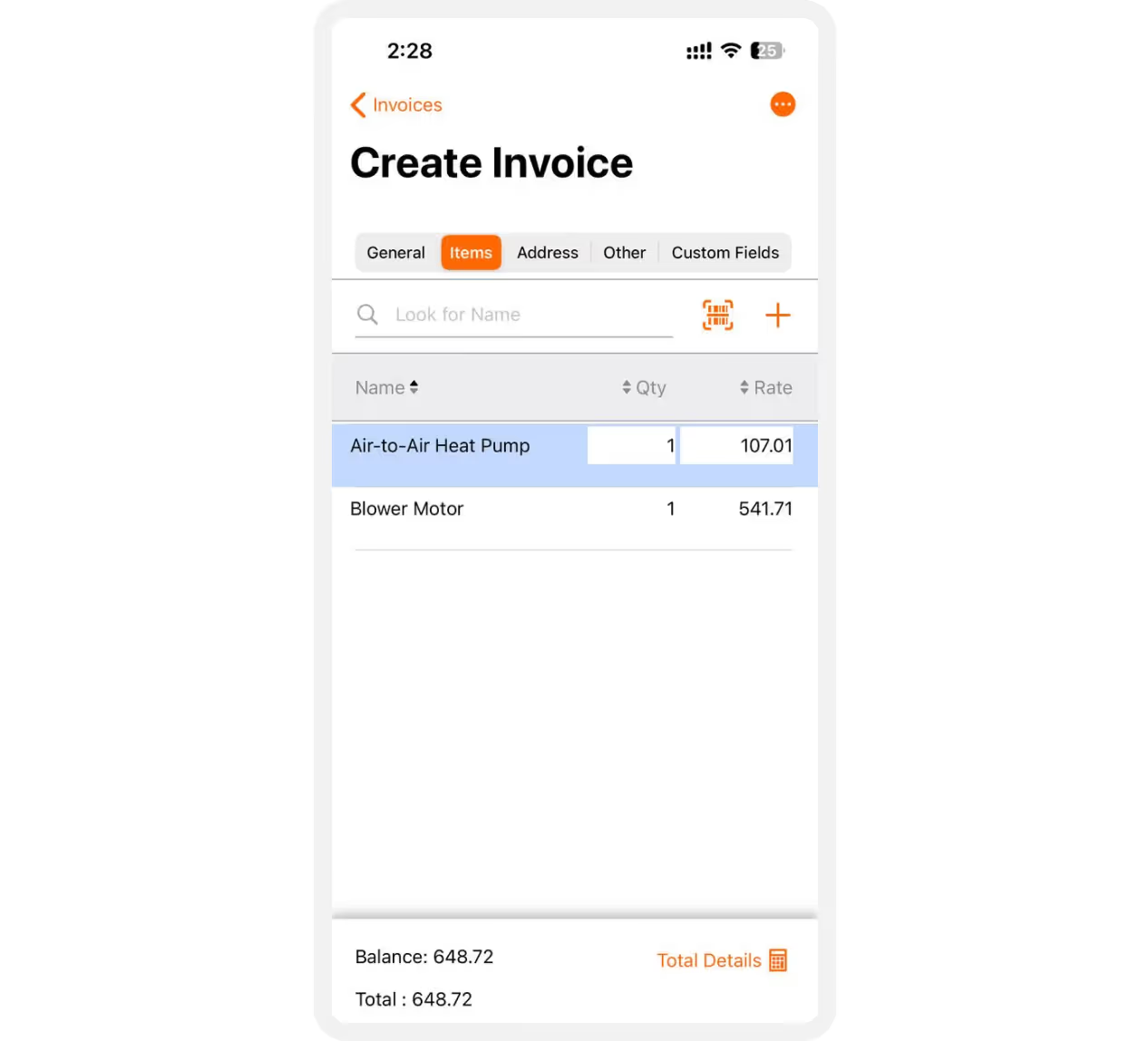
Creating a New Invoice

Tap the Add (+) button.
In the Items tab, add products by:
  • Typing into the lookup field, or
  • Scanning item barcodes
To scan an item’s barcode, tap Scan, and point your camera at the barcode, or use a connected barcode scanner for faster entry.
Each scanned or selected item will automatically appear in your invoice list.

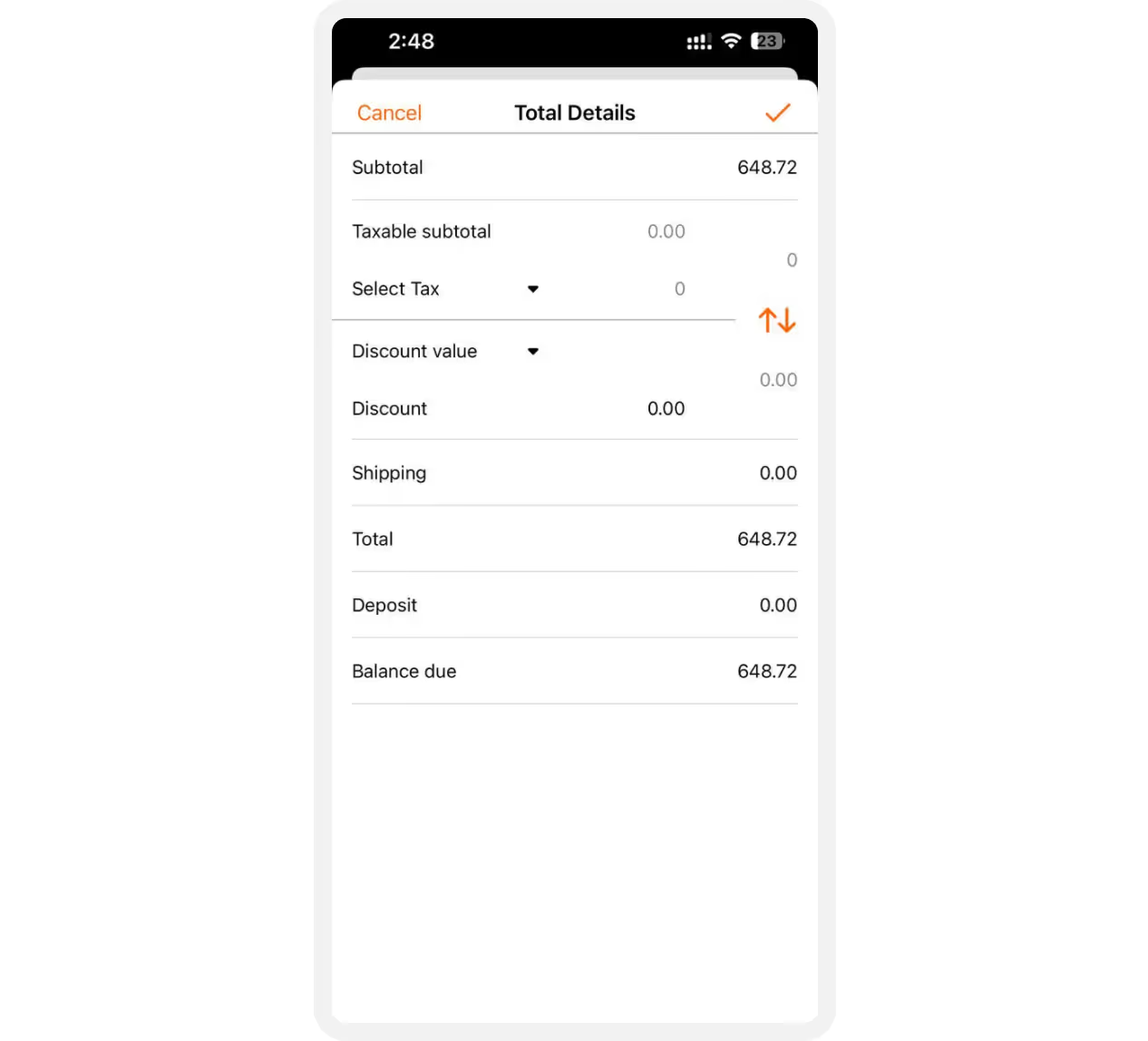
Adding Taxes and Discounts

Go to Total Details to adjust taxes and discounts for the invoice.
Taxes
Tax rates are created and managed in QuickBooks Online and sync automatically with HandiFox.
Discounts
Enter a discount value or percentage to apply it to this transaction.

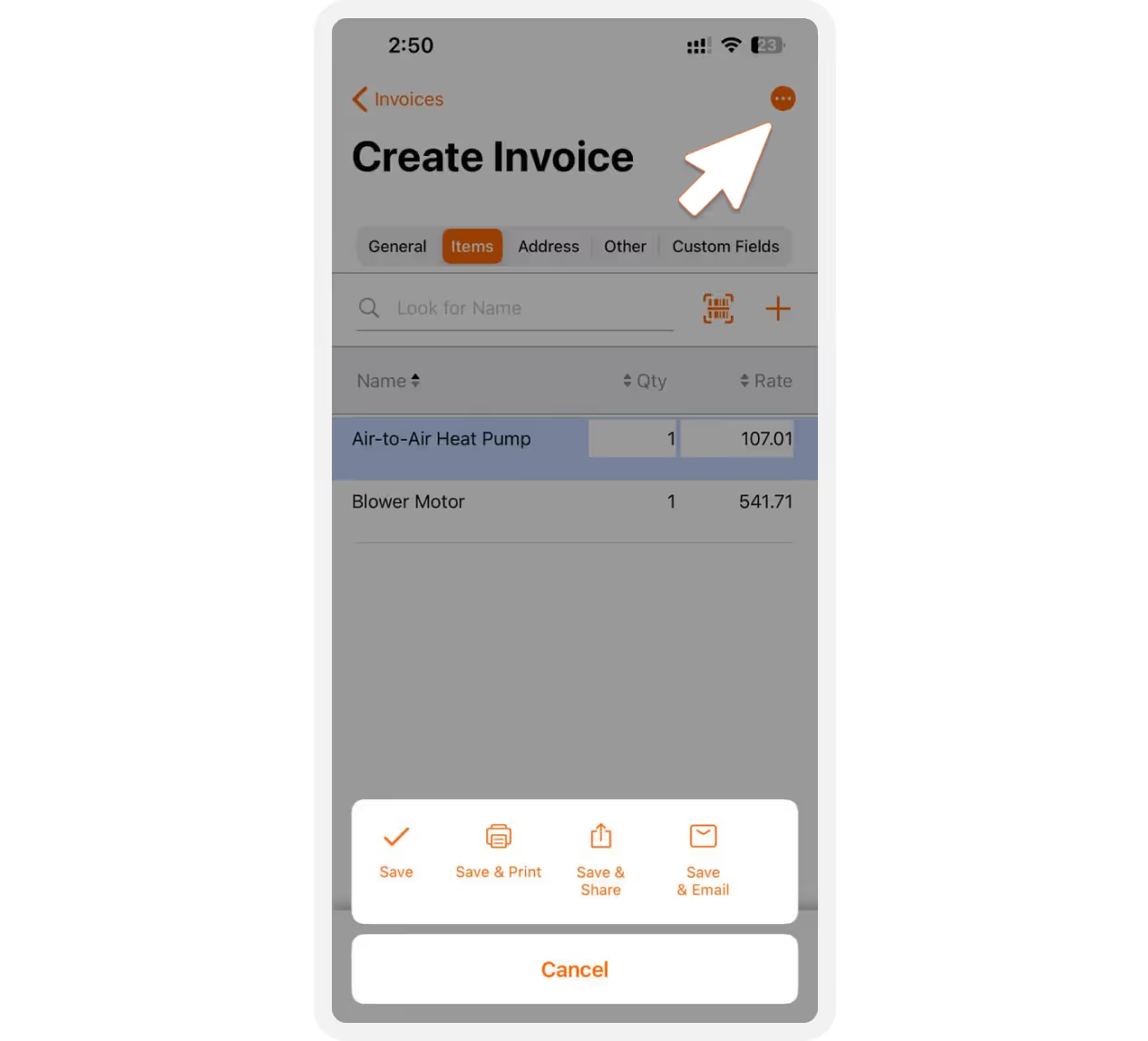
Printing or Sharing the Invoice

Tap the three-dots (⋯) icon to choose how you’d like to finalize the invoice:
Save and Print
Opens the customer signature screen where you can capture the customer’s signature, then sends the invoice to print.
Save and Share
Generates a PDF version you can email or share directly from your mobile device.
Save and Email
Email the PDF version right away.

Viewing the Invoice in the Web App

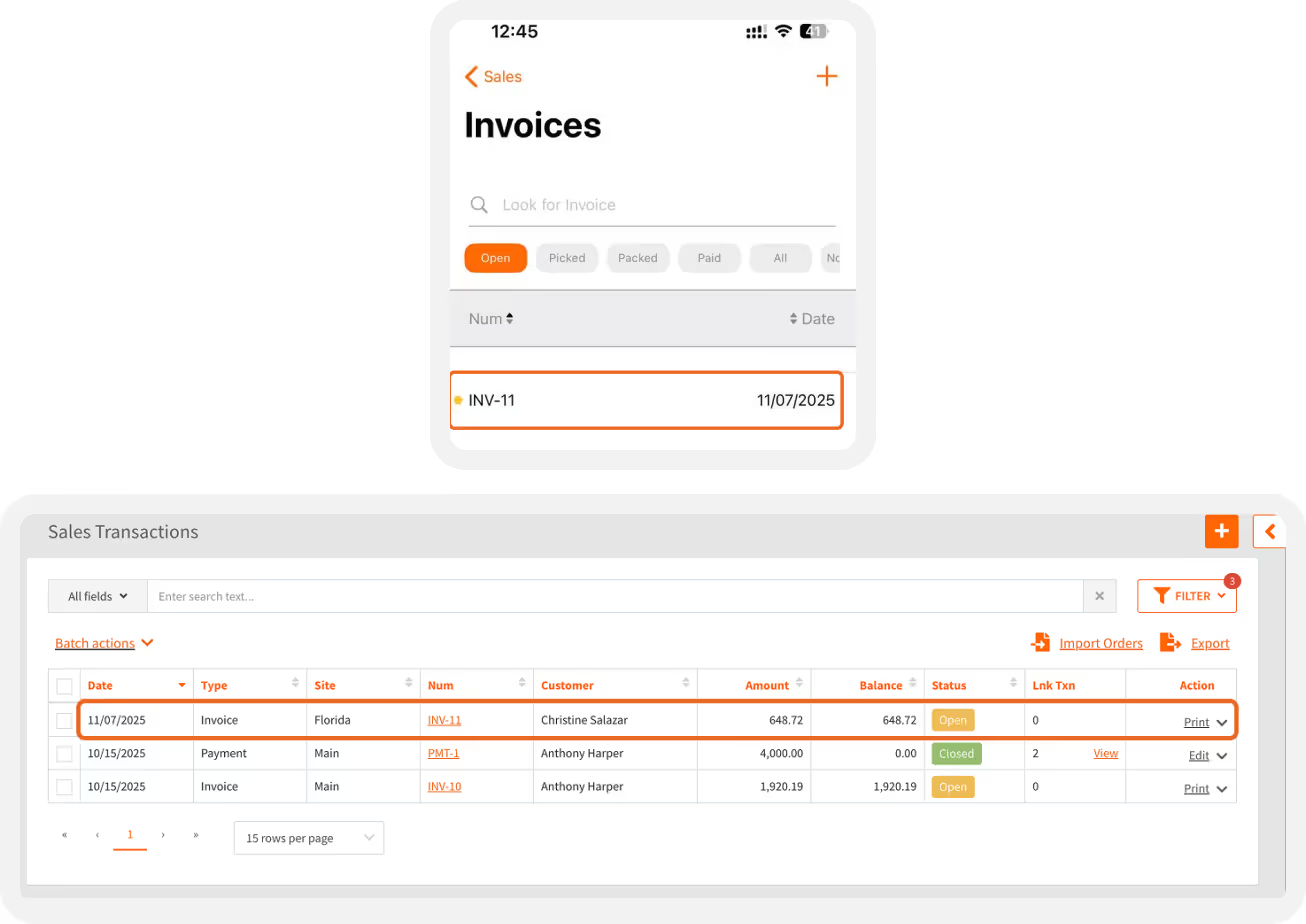
After synchronizing your mobile device, your newly created invoice will appear in the HandiFox Online web app.
Open the web app and go to Sales › Sales Transactions.
Sort by date or use filters to find your invoice.
Click the transaction number to view details.
From here, you can begin picking the invoice or email it to your customer directly.

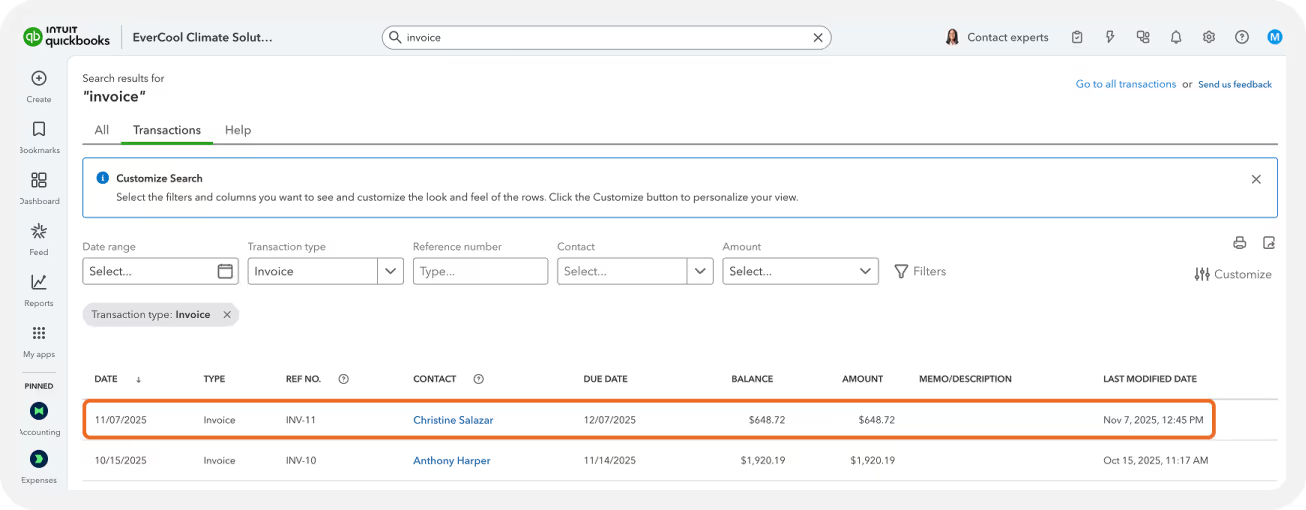
Viewing the Invoice in QuickBooks

Once synced, your invoice will also appear in QuickBooks Online under Sales › Invoices, ensuring your accounting data stays fully up-to-date.

Creating other transaction types

Creating other transaction types in the mobile app follows a similar scenario.
To get detailed, step-by-step instructions, refer to the HandiFox Online Knowledge Base:
Purchase Orders
Sales Orders
Transfers
Counting Sessions
Sales Receipts
Smart, simple inventory for businesses on the move
Book a DemoFree Trial
Sign up for tips, news & updates
Thank you!
Your submission has been received!
Oops! Something went wrong while submitting the form.
Industries
Automotive parts and supplyFarm machinery and supplyApparel and jewelryHVAC and plumbingFood and beverageMedical supplies and healthcare equipmentConstruction and interior designElectronicsField servicesIndustrial equipmentSporting goodsWine and spiritsWholesale and distribution
Products
HandiFox OnlineHandiFox Desktop
Features
Inventory ManagementBarcodingMulti-Location TrackingPurchasingCustomers & VendorsSales & InvoicingPicking & PackingSerial and lot numbers, Expiration DateMobile AppUnits of Measure
Integrations
QuickBooks IntegrationShopify Integration
Support
Support CenterRelease NotesGetting Started Guide
Company
About HandiFoxBlogTestimonialsContact UsPartner ProgramHandiFox Online vs. SortlyHandiFox Online vs.
Inflow Inventory
Pricing
Download on the
App Store
GET IT ON
Google Play
Terms and ConditionsPrivacy Policy
HandiFox youtubeHandifox TwitterHandifox FacebookHandifox LinkedInHandifox Instagram
Unwrap your holiday discount!
Enjoy up to 40% OFF while
the season’s still bright.
Get free trial + discount