.svg)





.jpg)
Managing serial- and lot-tracked items can feel complicated at first, especially if your team is new to scanning workflows or handling products with expiration dates. Many HandiFox users understand why traceability matters, but struggle with how to enter, track, and deduct these items correctly in daily operations.
This article breaks the process into simple, repeatable steps. You’ll learn how to turn on serial/lot/expiration tracking in HandiFox Online, how to add tracked items into inventory, and how to deduct them, all using fast, scan-focused workflows.
Enabling Serial/Lot/Expiration Date Tracking in HandiFox Online
Before you can scan tracked items in or out of inventory, you first need to tell HandiFox how each product should be monitored. This is done at the item level while creating a new product or editing an existing one.
HandiFox gives you the flexibility to track serial numbers, lot numbers, expiration dates, or any combination of these, depending on what your workflow requires.
To enable tracking:
1. When creating a new item, mark Tracking and click Enable Tracking
.png)

2. Choose how you want it to be tracked:
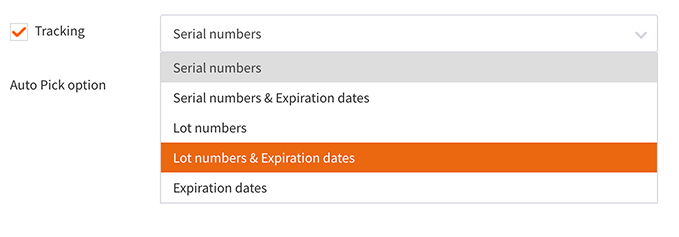
3. The last step of setup is choosing which fulfillment logic HandiFox should use when suggesting lots or serials during sales and transfers.
You can select:
- FIFO (First In, First Out): Ideal when items don’t expire; HandiFox will suggest the oldest received stock first.
- FEFO (First Expired, First Out): Best for products with shelf lives; the system prioritizes lots that expire sooner, helping prevent spoilage and keeping outbound stock fresh

Once these settings are in place, HandiFox will automatically guide your team toward using the correct lots or serials every time you pick, or ship, no guesswork required.
New to serial and lot tracking?
See how HandiFox tracks serial numbers, lots, and expiration dates from receiving to sale.
Adding Serial/Lot-Tracked Items to Current Inventory in HandiFox Online
HandiFox provides two efficient ways to add tracked items into stock:
Option 1: Scan new lots/serials in during receiving
This workflow is the fastest and most accurate because it captures data directly from labels.
To scan tracked items into inventory:
1. Go to Purchases → Purchase Transactions
2. Open an existing PO or create a new Item Receipt
3. Select the item you are tracking
4. Click the Scan Serial/Lot field
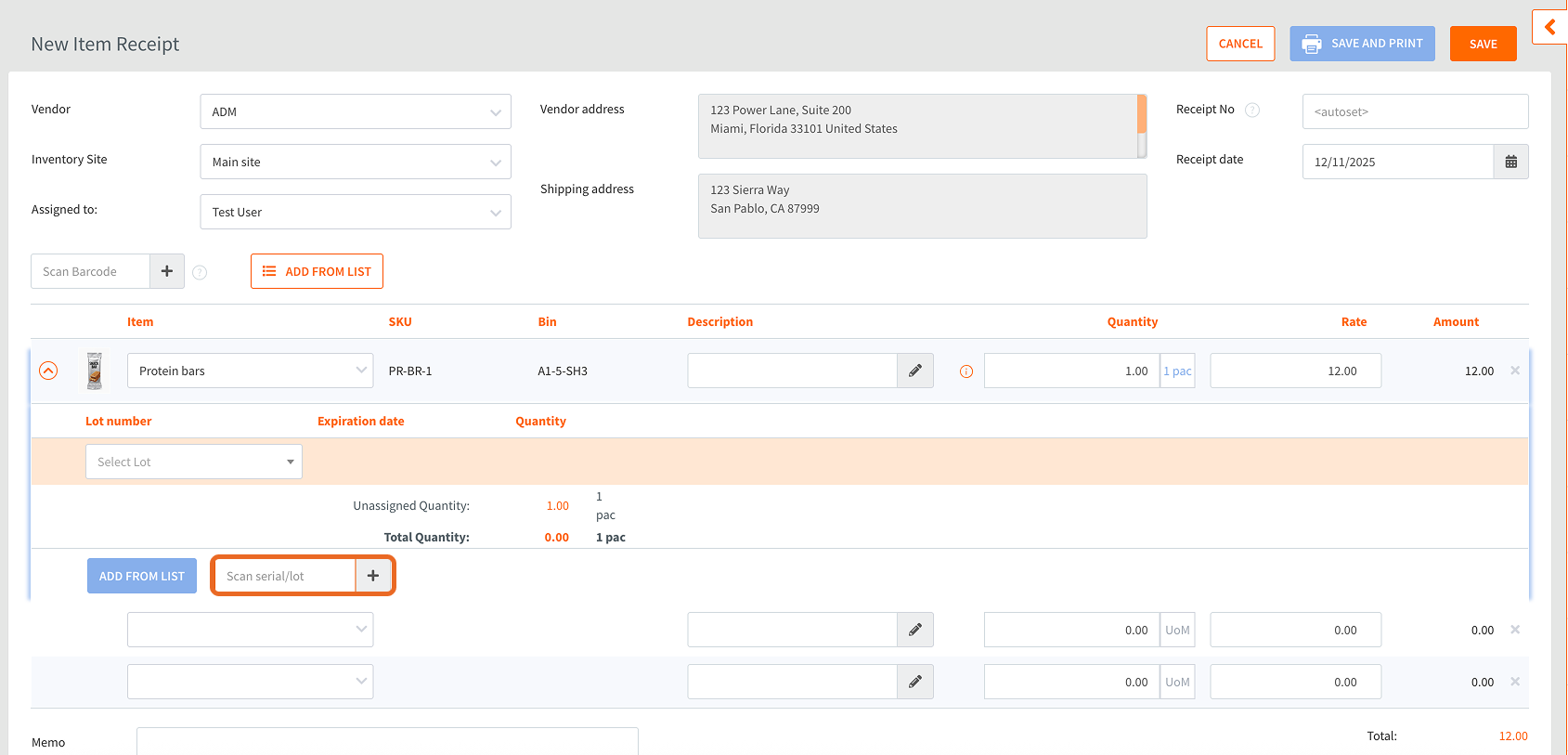
5. Scan each serial or lot barcode attached to the product

6. Enter the quantity and expiration date (if applicable)
7. Click Save
Pro tip: If your supplier uses GS1 barcodes, you can scan the GS1 label once, and HandiFox will automatically extract:
- lot number
- serial number
- expiration date
- product identity (GTIN)
To enable this: Place your cursor in the Scan Barcode field (above the item table) → scan the GS1 code → HandiFox populates tracking information instantly.
To learn more about GS1 barcodes, check out our GS1 barcode guide
8. Check your newly added lots and serials by going to Inventory-> Serial/Lot Number and clicking on the item you’ve just added lots/serials for.
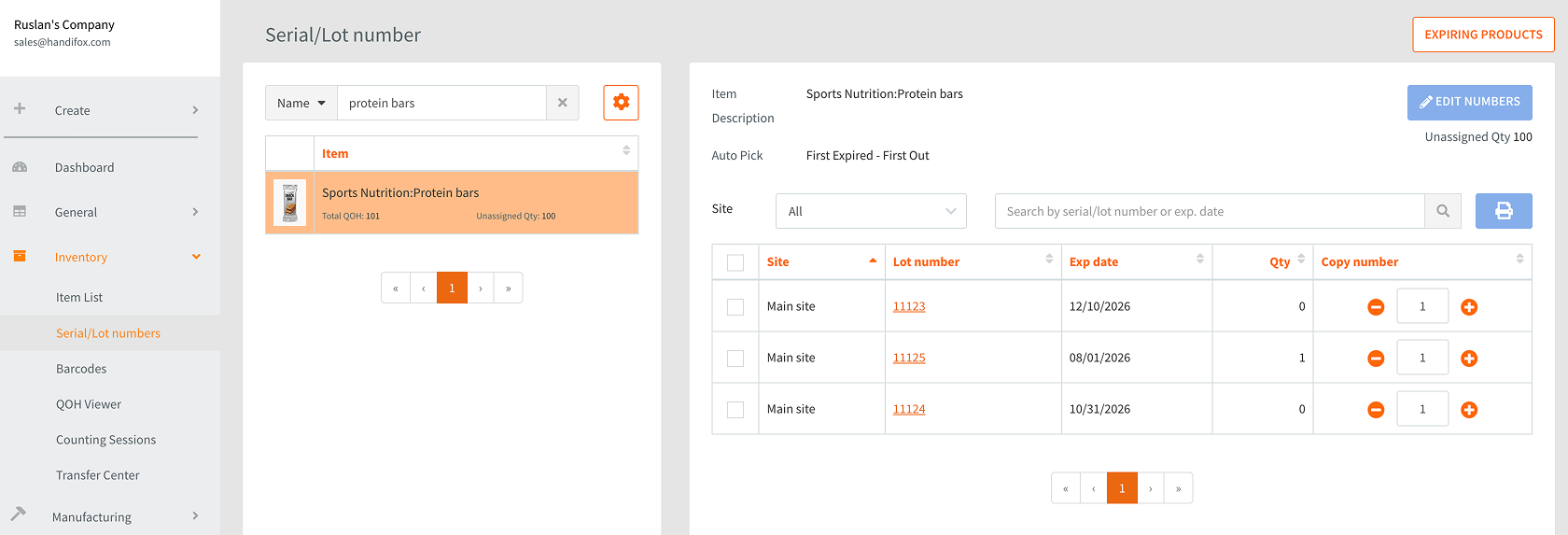
Option 2: Enter lot/serial values manually
If your suppliers don’t provide serial/lot barcode labels, you can enter their values manually or assign your own internal numbering. To do either, you need to:
If your products arrive without barcode labels:
- Go to Inventory → Serial/Lot Number
- Select the item → click Edit Numbers
- Add the serial/lot value
- Assign expiration date (optional)
- Enter quantity
- Click Save
.png)
This is helpful for small volumes, rework items, or custom-assembled products.
Generating and printing serial/lot barcode labels
In case your supplier isn’t attaching serial/lot barcode labels, you can generate those using HandiFox:
1. Go to Inventory → Serial/Lot Numbers
.png)
2. Select the item and the specific lot/serial
3. Click Print
4. Choose label format, size, and displayed data
.png)
.png)
5. Print and apply the labels to your products
This ensures consistent labeling even when suppliers don’t provide it.
Deducting serials/lots from current inventory in HandiFox Online
Inventory is deducted when a tracked item is sold, shipped, or transferred. HandiFox will always ask which lot or serial you’re removing so that traceability remains intact.
To scan lots/serials out during a sale:
- Go to Sales → Sales Transactions → +Invoice
- Add the item you're selling
- Click the Scan Serial/Lot field
- Scan the barcode for each lot or serial being sold
- Enter the quantity
- Click Save or Save & Send
.png)
Other workflows where lots/serials must be scanned:
- Picking/Packing (recommended before invoicing)
- Transfers between locations
- Cycle counts
- Sales Receipts
HandiFox will prevent the transaction from being saved if required serials/lots are missing, ensuring accuracy every time.
Need help fine-tuning your tracking workflow?
For a deep dive into the serial/lot/expiration date (SLED) tracking functionality of HandiFox Online, including how to add/deduct serials and lots in the mobile app, check out the complete SLED (Serial/Lot/Expiration Date) Guide.
If you still have questions or want us to walk you through best practices for scanning lot- and serial-tracked items, our team is here to help. Contact HandiFox Support - we’ll make sure your traceability workflows are set up for speed, accuracy, and long-term success.