.svg)





.jpg)
Most small and mid-sized businesses assume barcodes will be the easy part of inventory management. After all, you just scan a label, hear a beep, and the item magically appears in your system, right?
In reality, barcode setup is one of the biggest hidden challenges companies face when they adopt inventory software. Supplier barcodes may be inconsistent. Some items arrive without labels. Teams aren’t sure whether to generate their own codes or rely on manufacturer ones. And when hundreds of SKUs are involved, the entire process can feel overwhelming.
With the right approach, however, barcode setup becomes straightforward and extremely efficient, especially when using barcode inventory software like HandiFox Online.
This guide answers the most common barcoding questions businesses ask and explains the workflows that work best for growing operations, making it a practical inventory barcoding guide for small teams.
1. How Do I Set Up Barcodes for Inventory?
Setting up barcodes properly ensures your items scan reliably and match the right products in your system. The setup process looks different depending on your situation, but here’s the simplest way to think about it:
Step 1: Decide whether you’ll use supplier barcodes or your own. We’ll break down each option in the next sections.
Step 2: Record the barcode/SKU mapping in your system
HandiFox Online gives you two options:
- Manual scanning, which works fine for small catalogs.
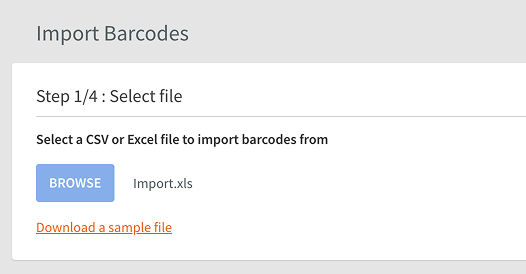
- Excel import. This is essential for businesses with many SKUs.
Pro tip: If your supplier can send an Excel file with SKUs and barcodes, this is the fastest onboarding method. Simply import it into HandiFox, and all labels will immediately match the right items.
Step 3: Print labels (if needed)
If you’re creating your own barcodes or supplementing missing labels:
- Print on standard/sticky paper for small teams
- Use a thermal barcode printer for higher volumes
See label printer recommendations in our Hardware Guide.
Step 4: Start using barcodes in daily workflows
Once mapped, you can scan for receiving, picking, transfers, counts, and sales.
When done correctly, barcoding dramatically accelerates the entire inventory flow and reduces errors.
2. Should I Use Manufacturer Barcodes?
In many cases — yes. Using supplier barcodes is often the most efficient approach.
When You Should Use Manufacturer Barcodes
- The supplier already labels all items consistently
- They use GS1 barcodes, which follow a global standard
- You want to avoid labeling products yourself
If your supplier uses GS1 labels (UPC, EAN, GS1-128, DataMatrix, etc.), you’re in great shape. These codes already contain standardized information and can include batch numbers, expiration dates, or serials.
If you want a simple explanation of GS1 barcodes and why they matter, see Mastering GS1 Barcodes: What They Are and Why Businesses Use Them.
When Manufacturer Barcodes Aren’t Ideal
- Supplier labels are missing or inconsistent
- Multiple suppliers use different barcode formats
- You sell private-label or bundled items
- You want standardized barcoding across your operation
In these cases, you may need to supplement, replace, or generate your own labels.
Generate and print barcodes for all your items
HandiFox Online creates barcodes for your items in bulk and prints labels you can use right away for receiving, counts, and picking.
3. How to Generate Multiple Barcodes for a Warehouse in One Go
If suppliers don’t provide labels, or you want full control, generating your own barcodes is the best option. This is extremely common for wholesalers, distributors, manufacturers, private-label sellers, and multi-supplier operations. Here is how to generate multiple barcodes in HandiFox Online in one sitting.
1. Go to Inventory->Barcodes
2. Select the SKUs
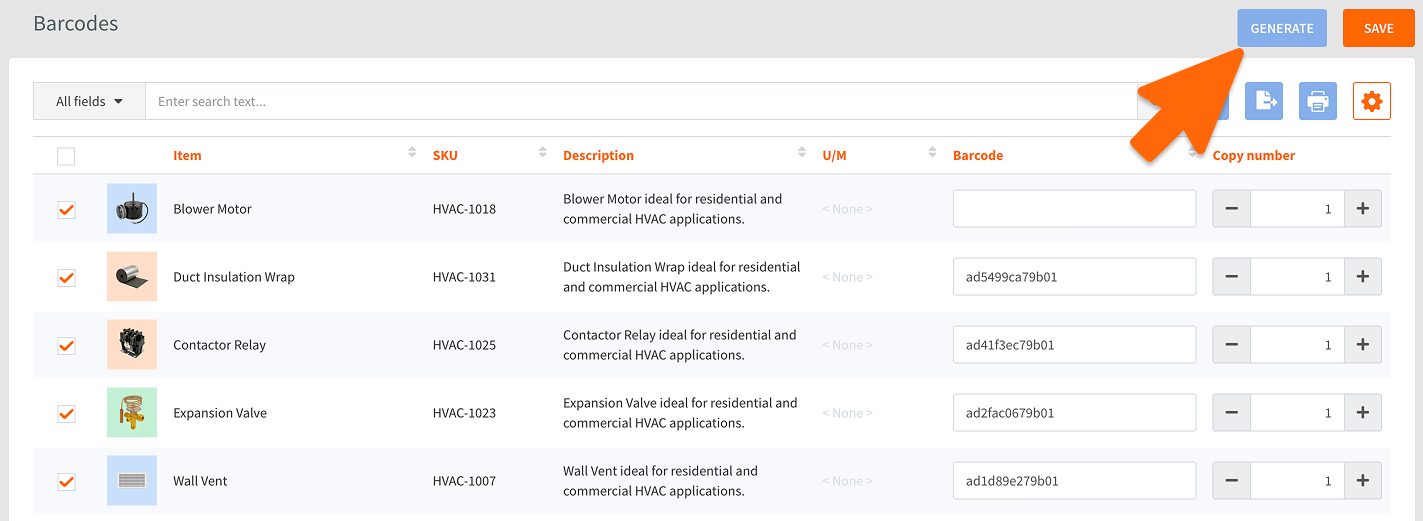
3. Click Generate to make HandiFox auto-create unique barcodes.
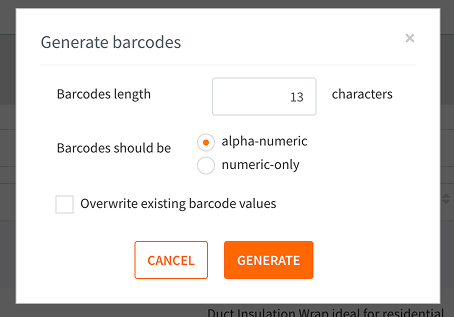
4. Click Print, choose label components, and print labels immediately.


When to consider generating your own barcodes
- Products arrive unlabeled
- Labels vary by supplier
- You want a consistent internal labeling system
- You need labels for cases, inner packs, or kits
- You have product variations that suppliers don’t barcode individually
4. Can I Generate Barcode Labels for Each Unit of Measure or Lot Number?
With HandiFox - absolutely. You can assign up to 10 units of measure (UoM) to each item and generate as many barcodes as you have units. The same flexibility applies to lots.
Generating Barcode Labels for Units of Measure in HandiFox Online
First things first, assign the base and additional UoM to an item:
1. Go to Inventory → Item List, select an item, and click Edit
2. In the Units of Measure & Barcodes tab:
- Set the base unit
- Add related units
- Enter or scan a barcode for each unit
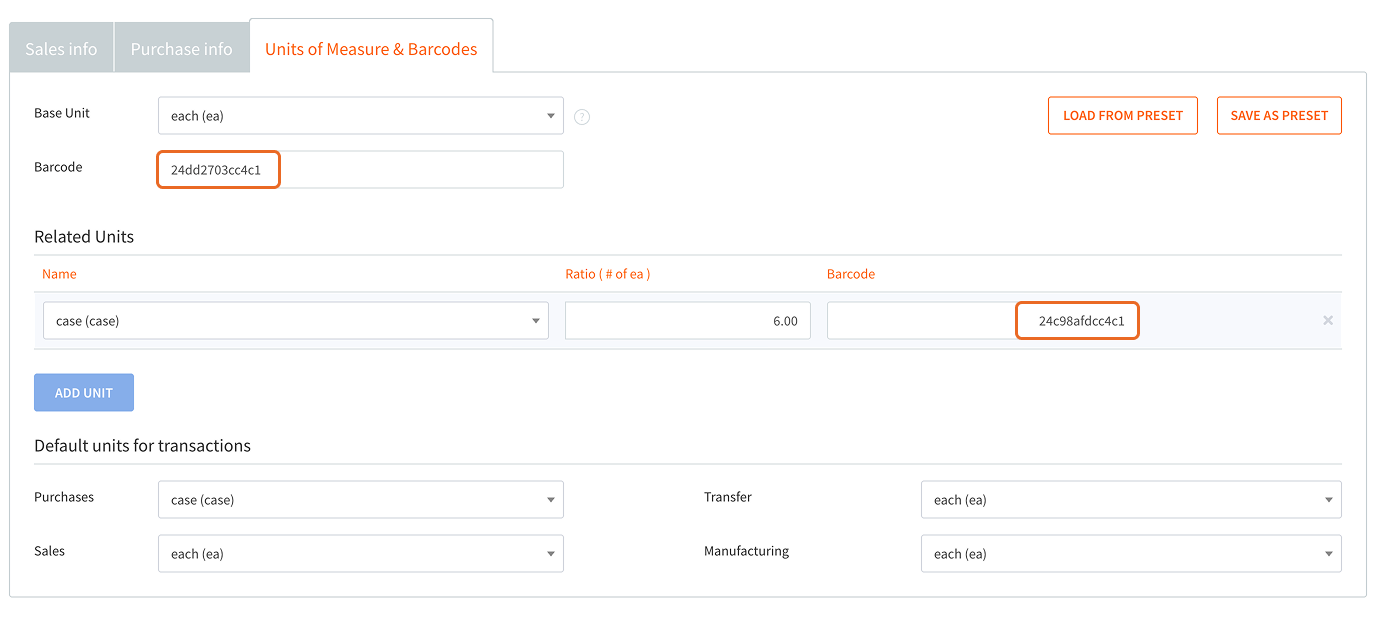
3. Go to Inventory → Barcodes to review the newly created entries

You can make HandiFox auto-generate/re-generate these barcodes by ticking them and clicking Generate. You can also print these labels by clicking on the printer icon.

Generating Barcode Labels for Lot Numbers in HandiFox Online
To generate lot number barcode labels:
1. Go to Inventory→Serial/Lot Numbers,
2. Select the item
3. Check the lot(s) you want to label

4. Click the printer icon to generate and print lot barcode labels


5. Do I Need to Label Every Product?
The short answer is no, not always. There are three common labeling strategies, each valid depending on your business.
Option 1: Label Every Item
This approach works best for retail products, serialized items, regulated industries (pharma, cosmetics, supplements), any product with expiration/batch tracking, and ensures every individual unit can be scanned throughout the workflow.
Option 2: Label Only the Box, Case, or Carton
This option is a major time-saver for businesses in wholesale, distribution, and those picking in larger quantities.
If you rarely pick individual units, labeling a case is enough.
Option 3: Label Only the Shelf or Rack (Location Labels)
This is one of the most efficient workflows that is often overlooked. It works best for:
- warehouses where each location holds a single SKU
- fast-moving operations
- teams doing many counts, picks, and putaways
Workflow example: Scan the location label → scan items when stocking or picking → no need to label every product.
The Right Barcode Strategy Makes Inventory Effortless
Barcodes are simple, but setting them up the right way is where businesses save the most time and prevent the most errors. Whether you rely on supplier barcodes, generate your own labels, or use advanced workflows like vendor labeling or rack barcoding, a well-structured system ensures:
- Faster receiving
- Fewer picking mistakes
- Cleaner stock counts
- Streamlined fulfillment
- Real-time accuracy
HandiFox Online supports all major barcode workflows, from GS1 codes to in-house labels, and gives your team a seamless scanning experience that reduces friction across every inventory process.
Ready to Get Barcoding Right?
Try HandiFox Online free and see how quickly you can set up supplier barcodes, generate new labels, or organize your warehouse with location codes.