.svg)




.jpg)
There is a reason why every item at the grocery store has a barcode. It’s not just for the price check; it’s because managing thousands of items manually is impossible.
Yet, many small businesses still try to do exactly that. They rely on "visual checks," memory, or manual data entry to track their stock. The result? Inventory shrinkage, shipping errors, and hours of wasted time trying to figure out why the physical count doesn't match the spreadsheet.
If you are looking to professionalize your warehouse operations in 2025, the answer isn't hiring more people—it's adopting inventory barcoding.
Implementing inventory barcodes transforms your products from physical objects into digital data points. It is the bridge between your warehouse shelf and your accounting software, making a barcode inventory management system possible.
In this guide, we will walk you through exactly how barcoding works, why it is the most cost-effective upgrade for small businesses, and how HandiFox helps you implement it seamlessly with QuickBooks.
What Are Inventory Barcodes and How Do They Work?
At its simplest, an inventory barcode is a machine-readable representation of data. It’s a visual pattern (usually black bars on a white background) that encodes numbers or characters.
When you scan a barcode, three things happen instantly:
- The Read: The scanner uses light to "read" the pattern and converts it into a string of text (e.g., "12345678").
- The Lookup: Your inventory software receives that text, searches its database, and identifies the product associated with it (e.g., "Blue Widget, Size M").
- The Action: The software performs a task—adding stock, deducting stock, or verifying an order.
Without inventory barcoding, this process requires a human to look at a label, walk to a computer, and type. This "human gap" is where 90% of inventory errors occur.
Types of Barcodes Used in Inventory Management
You don't need to be a computer scientist to use barcodes, but it helps to know the two main categories used in stock control.
1. External (Retail) Barcodes: UPC and EAN
If you buy products from a manufacturer to resell, they likely already have a barcode on the packaging.
- UPC (Universal Product Code): The standard 12-digit code used in North America.
- EAN (European Article Number): The 13-digit standard used globally.
Pro tip: You don't need to create new labels. You simply map the existing UPC to your item in your inventory software.
2. Internal Barcodes: Code 128 and QR Codes
If you manufacture your own goods, bundle kits, or track bins, you need internal codes.
- Code 128: A highly versatile barcode that can encode letters and numbers. It is excellent for tracking Serial Numbers or Lot Numbers.
- QR Codes: 2D barcodes that can hold much more data.
Pro Tip: You generate and print these labels yourself using your inventory system.
Benefits of Inventory Barcoding for Small Businesses
Why should a small business invest time in setting up inventory barcodes? The Return on Investment (ROI) comes from three specific areas.
Accuracy and Error Reduction
Manual data entry has an error rate of about 1%. That sounds low, but if you ship 1,000 items a month, that is 10 wrong orders. Barcode scanning has an error rate of 1 in several million.
By using scanners during inventory management tasks like cycle counts, you eliminate the "fat finger" errors where someone types "100" instead of "10."
Speed and Efficiency
Time is money. Receiving a shipment of 50 mixed items manually can take 30 minutes of cross-referencing paper lists. With a scanner, it takes 3 minutes.
Faster Training: It is much easier to teach a new employee to "scan the beep" than to teach them to identify 500 different parts by sight.
Real-Time Visibility
When you use inventory barcoding, your stock levels are updated the second the scan happens. This gives you live data for better purchasing decisions. You stop ordering items you already have and start ordering the ones you actually need.
How to Create and Assign Barcodes to Products
Implementing a barcode system might seem daunting, but it is actually a straightforward four-step process.
Step 1: Clean Your Data
Before you print anything, ensure your SKUs (Stock Keeping Units) are organized in your system (like QuickBooks). Ensure there are no duplicate items.
Step 2: Decide on a Symbology
- Reselling? Use the manufacturer's UPC.
- Making your own? Use Code 128 for its reliability and alphanumeric support.
Step 3: Generate the Codes
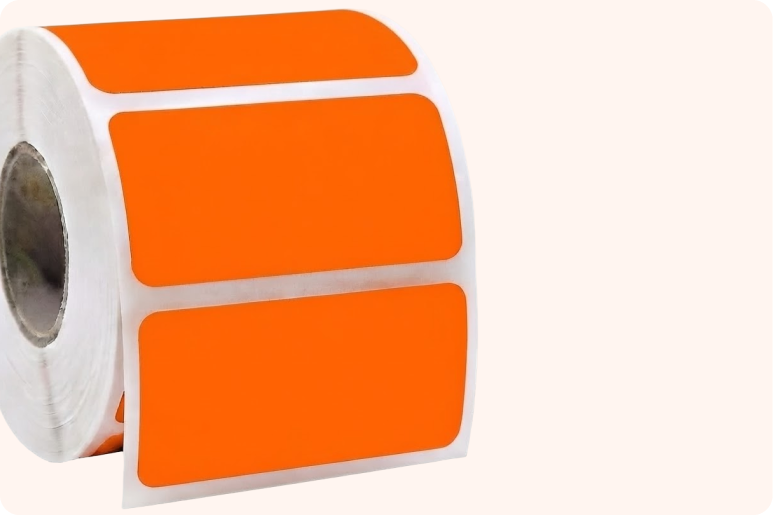
You do not need expensive design software. Good inventory software, like HandiFox, has built-in label generation tools. You simply select the items in your list and choose "Print Labels."
Step 4: Label Your Inventory
Apply the stickers to your products.
Pro Tip: Don't forget to label your shelves/bins too. Scanning a "Bin Location" barcode helps you track exactly where an item is stored.
HandiFox’s Barcode Features and Mobile Scanning
HandiFox was built to bring enterprise-level inventory barcoding to small businesses using QuickBooks. We make the technology accessible and easy to use.
Mobile Scanning (Android & iOS)
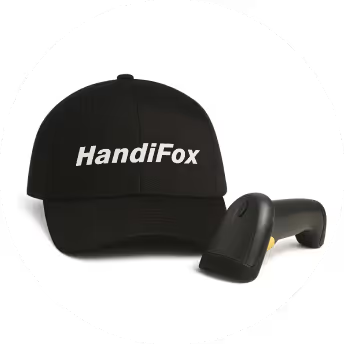
You don't necessarily need to buy $1,000 rugged scanners. HandiFox allows you to use the camera on standard smartphones or tablets to scan inventory barcodes. For high-volume warehouses, our app pairs seamlessly with Bluetooth laser scanners or industrial devices (like Zebra) for rapid-fire scanning.
Barcode-Enabled Workflows
We integrate scanning into every step of the supply chain:
- Receiving: Scan incoming goods against the Purchase Order to verify accuracy.
- Counting: Perform cycle counts by walking the aisles and scanning items.
- Picking: This is critical. When fulfilling an order, the app requires the user to scan the item. If they grab the wrong one, the app alerts them immediately. This ensures perfect picking and packing.
Label Printing
HandiFox makes it easy to replace damaged or missing labels. You can trigger a label print job directly from the handheld device to a networked printer, ensuring your inventory is always tag-ready.
Best Practices for Implementing Barcoding
To get the most out of your inventory barcoding project, follow these expert tips:
- Test before you print: Print a few sample labels and test them with your scanners to ensure they read correctly before printing thousands.
- Standardize placement: Place labels in the same spot on every box (e.g., bottom right corner). This speeds up the scanning process for your team.
- Start small: You don't have to label the entire warehouse in one weekend. Start with your fastest-moving products (top 20%) and expand from there.
The days of manual inventory tracking are numbered. As customer expectations for speed and accuracy rise, inventory barcoding becomes not just a tool, but a requirement for survival and growth.
By implementing a system like HandiFox, you are doing more than just sticking labels on boxes. You are building a digital infrastructure that allows you to scale, reduces costly errors, and integrates your physical warehouse directly with QuickBooks. Request a demo and see how easy it is to start scanning.