.svg)





.png)
HandiFox Online now offers a new way for your customers to place orders - an online B2B product catalog with real-time inventory visibility and stronger inventory management for B2B operations.
The portal lets you build and publish a digital product catalog that customers can either browse or use to place orders instantly, depending on how you configure access through B2B ordering portals. New orders appear in HandiFox in real time, ready to be processed through your picking and packing workflows.
Note: The B2B Portal is currently available to customers on the Pro subscription plan.
Let’s go to Settings → B2B Portal and dive into how it works in HandiFox Online.
Public vs. Login Access
The first thing to understand is that there are two types of access: public access and login-based access.
- Public access allows anyone with the link to view your product catalog, but they cannot place orders.
- Login access (via invitation) allows users to both view products and place orders.
Here’s how these access levels compare:
Public Access
- View products in the catalog
- See default pricing or universally applied price levels
- Cannot place orders
Login Access (via invitation)
- View products in the catalog
- Place orders directly through the portal
- View frequently ordered products (last 1 / 3 / 6 / 9 / 12 months)
- See customer-specific pricing automation based on assigned price levels
To enable public access, navigate to the General tab of the B2B Portal settings and toggle the Public Access switch.
B2B Portal Setup
General Settings
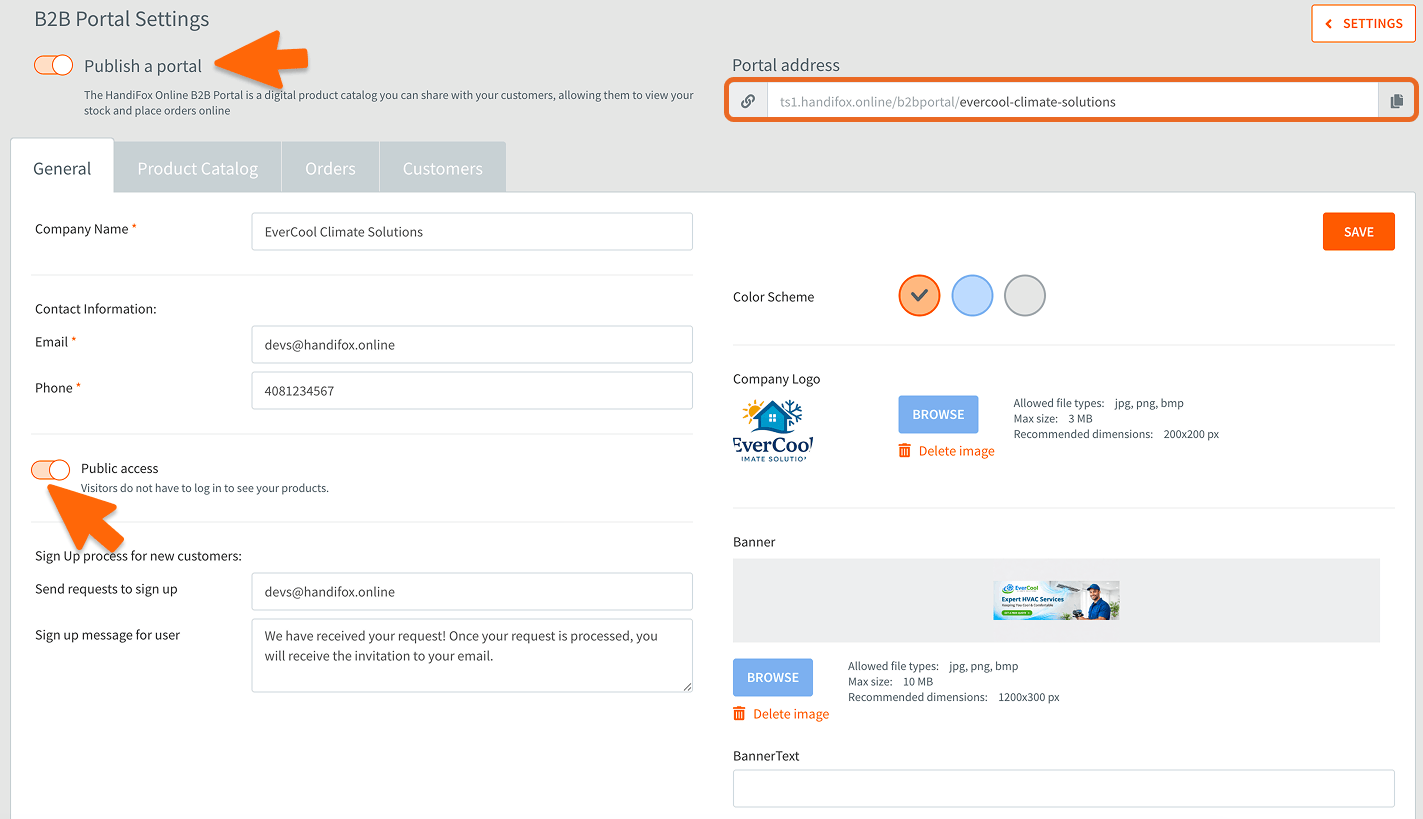
Before starting setup, make sure the “Publish Portal” switch is turned off. Next to it, you’ll find your portal link - you can customize the URL slug after “b2bportal/” and copy the link for sharing.
In General Settings, you can configure the look and feel of your B2B portal:
- Choose a color scheme
- Upload your company logo and banner image
- Enter the text displayed below the banner
- Add contact details for the footer
Click Save, publish the portal, and then open your portal link to view the changes.
Product Catalog

This is where you define what product information appears in your online catalog:
- Show Category / SKU / Barcode
- Display quantities:
- Hide quantities
- Show only In Stock / Out of Stock
- Show real-time availability
If you choose “Show Available Stock”, specify whether availability is based on:
- Available Quantity (= Quantity on Hand – Quantity on Sales Orders)
- Quantity on Hand only
Additional options:
- Toggle “Hide products if out of stock”
- Show availability across all locations (sites) or a specific one
- Configure pricing for:
- Non-authorized users (hidden, default, or those based on price levels for all customers)
- Authorized users (default or price-level-based)
- Choose whether to display all products or selected ones
Click Save and move on to Orders settings.
Orders

In the Orders tab, you can:
- Customize checkout messaging
- Set order confirmation messages
- Select the order template used when creating new orders from the portal
Customers
Here you can invite customers and manage portal access.

To invite a user:
1. Click + Invite
2. Select a customer from your list

3. Configure default access settings
If location restriction is turned off, customers can view products across all sites, and orders will be assigned to a default location. Alternatively, you can restrict visibility to a specific site.
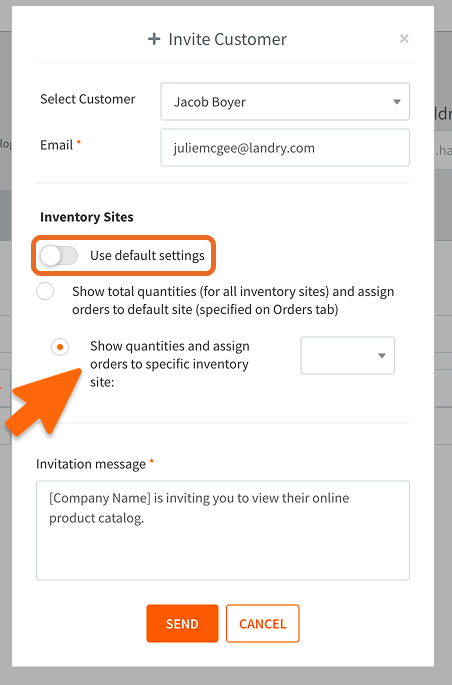
4. You can also customize the invitation email, then click Send.
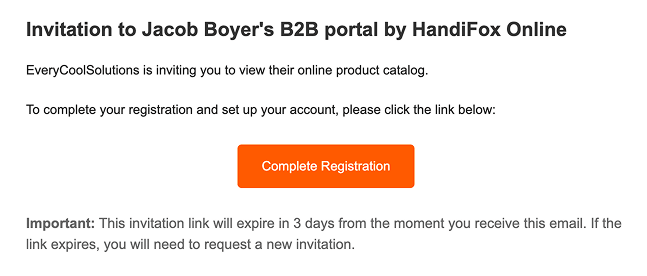
The recipient will receive an email prompting them to register and set a password.
Once logged in, customers will see your B2B portal exactly as configured.
Want customers to place orders themselves?
The HandiFox Online B2B portal turns your catalog into a self-service ordering channel, with customer-specific pricing and orders that land straight in your sales orders.
B2B Portal: What Your Customers Can Do
Request Access
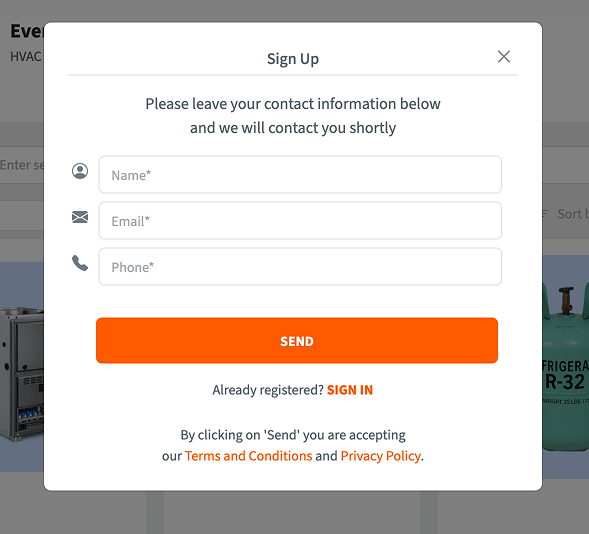
If a customer has the portal link but hasn’t been invited, they can click Sign Up and submit a request by entering their contact details.
Alternatively, you can invite them directly from within HandiFox (via the Customers tab in the B2B portal settings).
Browse Products and Place Orders

Once logged in, customers can:
- Browse your digital product catalog
- Sort products by bestsellers, name, or price
- Add items to cart directly or via product pages

Clicking the cart icon takes them to checkout, where:
- Contact and shipping details are auto-filled
- They can enter their PO number
- They finalize the order by clicking Place Order

After checkout, they receive a downloadable sales order, while you immediately see it in Sales Transactions, or Open Sales Orders.


From there, you can begin picking and packing workflows in HandiFox.
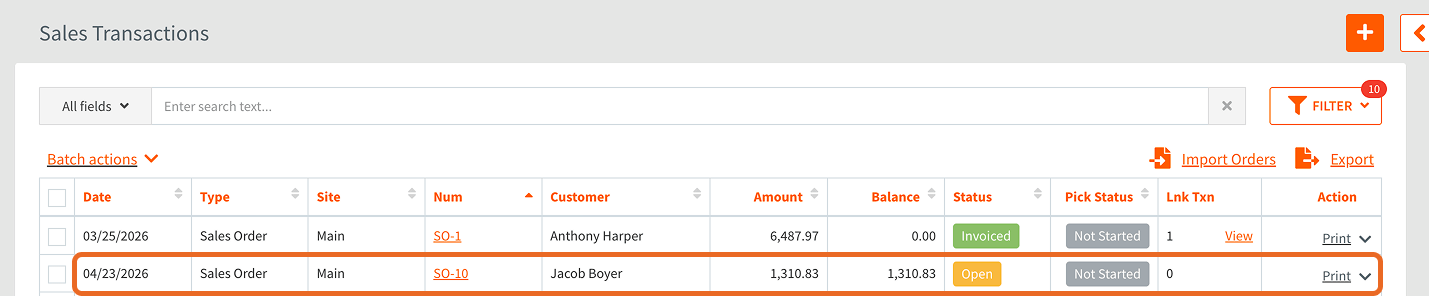
If you open a Sales Order created through the portal, you’ll see its source listed as “Customer Portal.”

Portal Menu
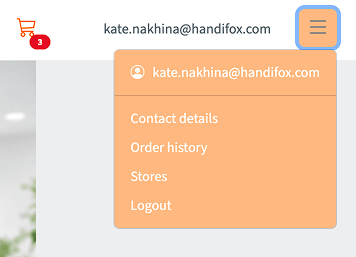
From the top-right menu, customers can:
- Update contact details
- View order history
- Check accessible locations (if multiple are assigned)
In Order History, customers can track order status: Open, Invoiced, Partially Invoiced.

They can click any order to view full details.

Try the HandiFox B2B Portal
Give the new B2B Portal a try and see how it fits into your workflow.
The B2B Portal is included in the Pro plan. If you have questions about setting it up for your customers, contact us at support@handifox.online.