


We've updated subscription management in HandiFox Online with Stripe, making it easier to purchase a subscription, change plans, and manage payments.
Purchase and Manage Subscriptions with Stripe
New customers can now purchase HandiFox Online subscriptions through Stripe.
If you’re ready to purchase a subscription after your trial, go to Settings → Subscription Info → Buy subscription. Choose your plan and click Next. HandiFox will direct you to Stripe to complete the payment setup.
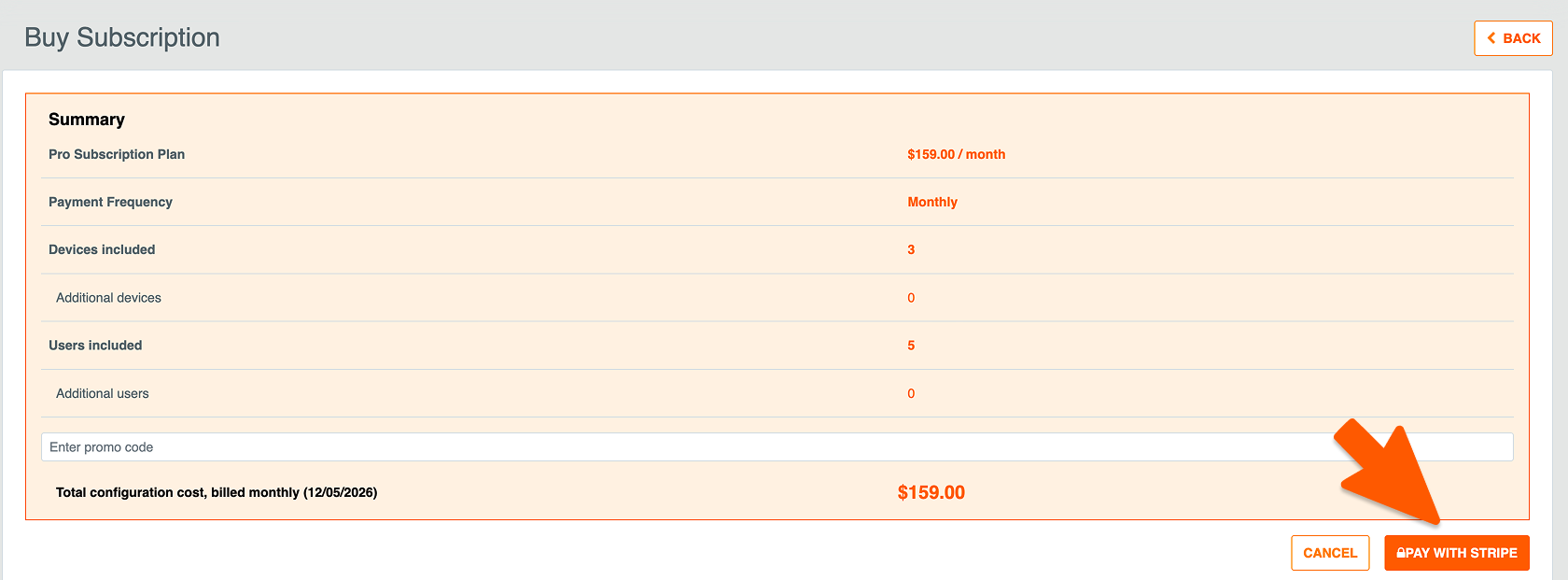
On the next screen, choose your payment method - Apple Pay, Link, card, Cash App Pay, or bank account - and click Subscribe.

After the purchase is complete, you’ll be automatically redirected to your HandiFox Online account, where you’ll see a subscription confirmation.
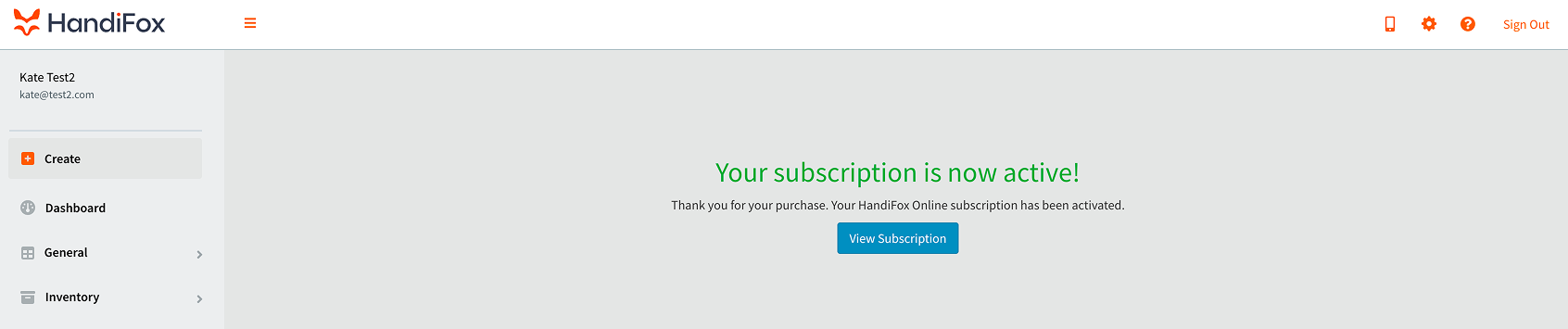
Click View subscription to return to Subscription Info, where you can review or change your plan and manage your payment method through Stripe.
Change Your Subscription Plan
You can upgrade or change your HandiFox Online subscription plan by going to Subscription Info → Change Subscription. Select a new plan, review the changes, and submit your request.
Already Paying Through PayPal? Here's What You Need to Know
If you're an existing HandiFox Online customer paying through PayPal, you don't need to switch payment methods to keep your current subscription. Your subscription will continue as usual, and you can keep using PayPal.
However, if you want to change your subscription plan, you’ll need to switch your billing to Stripe first.
How to switch from PayPal to Stripe
Step 1. Open the subscription notice on your Dashboard.

If you're currently using PayPal, you'll see a notice on your HandiFox Online Dashboard prompting you to switch your subscription payments to Stripe.
Follow the link, then click Update payment method on the Subscription Info page.

Step 2. Enter your payment details.
You’ll be directed to a Stripe payment setup page, where you can enter your payment information. You may see a button labeled Start Trial.

Important: If you're already a paying HandiFox customer, this does not mean you’re starting a new HandiFox trial.
Because you’re switching payment providers during an active billing period, Stripe needs to schedule your first Stripe payment for your next renewal date.
Clicking Start Trial starts that billing countdown. Your existing HandiFox subscription remains active, and your next scheduled payment will be processed through Stripe.
Once the switch is complete, future subscription changes and payments will be managed through Stripe.
What Happens If a Subscription Payment Fails?
We've also improved how HandiFox Online handles unsuccessful subscription payments.
If a payment fails, you'll receive:
- a notification on your HandiFox Online Dashboard informing you of the payment issue;
- an email prompting you to retry the payment.
This helps you spot payment issues quickly and resolve them before they affect your subscription.
A Simpler Way to Manage Your Subscription
With Stripe integration, purchasing and changing HandiFox Online subscriptions is now more streamlined.
New customers can set up payment for their subscriptions through Stripe, while existing PayPal customers can continue using their current payment method until they're ready to make a change.
Explore the new subscription management options in HandiFox Online today.